Setting up a DTF printer for the first time can feel overwhelming, but the process is straightforward once you know the steps. Whether you’ve just purchased an entry-level A3 DTF printer for your home studio or a commercial 24-inch machine for your print shop, this guide walks you through everything — from unboxing to printing your first transfer.
What You’ll Need Before You Start
Before powering on your machine, make sure you have the following ready:
- Stampante DTF (with power cable and USB/ethernet cable)
- DTF pigment ink (CMYK + Bianco)
- Film per animali domestici DTF (hot and cold peel options)
- Hot melt adhesive powder
- Software RIP (such as Maintop, Stampa fotografica, or Flexi)
- A computer running Windows 10 or later
- Macchina per pressa di calore (for the transfer step)
Fare un passo 1: Choose the Right Location
Place your DTF printer on a stable, flat surface with enough clearance on all sides — at least 30cm on the left and right for media feeding and collection. Keep the printer away from direct sunlight, polvere, and humidity, as these can affect print quality and printhead lifespan.
Ideal environment:
- Temperatura: 20–30°C (68–86°F)
- Umidità: 40–60% UR
- Ventilation: Good airflow recommended, especially for powder curing
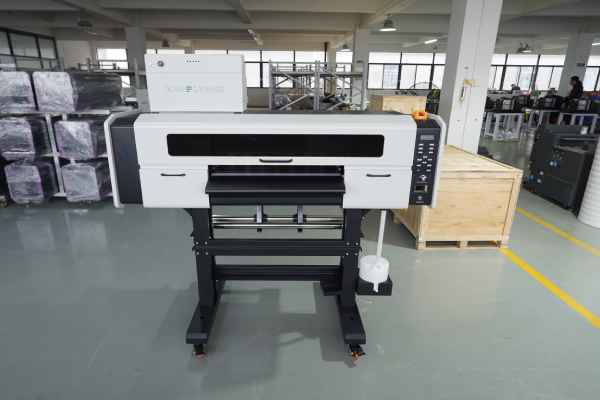
Fare un passo 2: Unbox and Inspect the Printer
Carefully remove all packaging materials, including foam blocks, protective tapes, and transit locks inside the printer. These are critical to remove — leaving them in place can damage the printhead carriage when you power on.
Check the following before proceeding:
- Printhead is clean and undamaged
- Ink tubes are properly seated
- Powder shaker and dryer unit (if integrated) are connected
- All cables and accessories are included
Fare un passo 3: Install the Printer Driver
- Insert the included USB drive or download the driver from the manufacturer’s website
- Run the installer and follow the on-screen instructions
- Connect your printer to the computer via USB or ethernet cable
- Confirm the printer appears in Devices and Printers on your Windows system
Tip: Always install the driver before connecting the USB cable, unless instructed otherwise by the installer.
Fare un passo 4: Install and Configure RIP Software
RIP (Raster Image Processing) software is essential for DTF printing — it controls ink density, strati di inchiostro bianco, profili colore, and print speed. Without it, you cannot achieve professional results.
Setup steps:
- Install your RIP software (Principale 6.1 is commonly used with Xinflying printers)
- Add your printer model from the device list
- Load the ICC color profile provided by your printer manufacturer
- Set the print mode:
- Color layer first, then White (standard for DTF)
- Opacità dell'inchiostro bianco: start at 100% and adjust based on test results
- Set print resolution: 600×1200 dpi for standard quality; 720×1440 dpi for fine detail
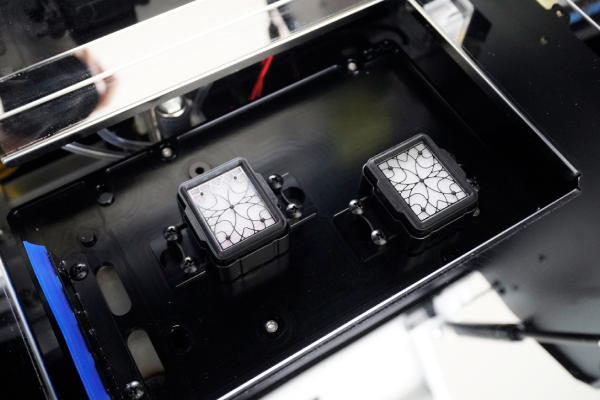
Fare un passo 5: Fill the Ink System
DTF printers use a bulk ink system with separate cartridges or tanks for each color channel: Ciano, Magenta, Giallo, Nero, and White.
- Shake the Inchiostro bianco bottle thoroughly for 2–3 minutes before filling — white ink settles quickly and must be mixed well
- Fill each tank to the indicated level, avoiding overfilling
- Prime the ink system using the printer’s maintenance panel — this draws ink through the tubes to the printhead
- Esegui un nozzle check to confirm all channels are firing correctly
Importante: White ink requires more frequent maintenance than CMYK. If the printer sits idle for more than 24 ore, run a short cleaning cycle before printing.
Fare un passo 6: Load the DTF Film
DTF printing is done on PET film, not fabric. The film is loaded into the printer like standard roll media.
- Mount the film roll on the media holder at the rear of the printer
- Feed the film through the platen and align it with the edge guides
- Ensure the printable (rivestito) side faces up — this is usually the shinier or slightly tacky side
- Set the media width in both the printer control panel and RIP software
- Confirm the film feeds smoothly without skewing
Fare un passo 7: Print a Test Pattern
Before running a full job, always print a nozzle check pattern:
- In the printer control panel, go to Maintenance → Nozzle Check
- Print the test pattern onto a small piece of film
- Inspect the result — all lines should be straight and unbroken
- If any nozzles are missing, run a Head Cleaning cycle and repeat the check
Once the nozzle check is clean, print a small test image (10×10 cm) to verify color accuracy, white ink density, and layer alignment.
Fare un passo 8: Apply Adhesive Powder
Dopo la stampa, the film comes out with wet ink that needs adhesive powder applied before curing.
Manual method:
- Pour hot melt adhesive powder over the printed area while the ink is still wet
- Shake off excess powder gently — only powder that sticks to the wet ink should remain
- Tap the back of the film to remove any loose powder
Automated method (integrated shaker unit): Most commercial DTF printers include an automatic powder applicator — the film passes directly from the printer into the powder zone, then into the curing oven.
Tip: Use fine powder (80–120 mesh) for detailed designs and coarser powder for thick fabrics.
Fare un passo 9: Cura la polvere
The adhesive powder must be melted and cured to bond properly with the print layer.
- Oven/tunnel dryer: 130–160°C for 2–3 minutes (recommended for production)
- Termopressa: 160°C for 30–60 seconds, no pressure, lid slightly open to allow moisture to escape
The cured transfer should appear slightly glossy and the powder should be fully melted — no white granules should be visible.
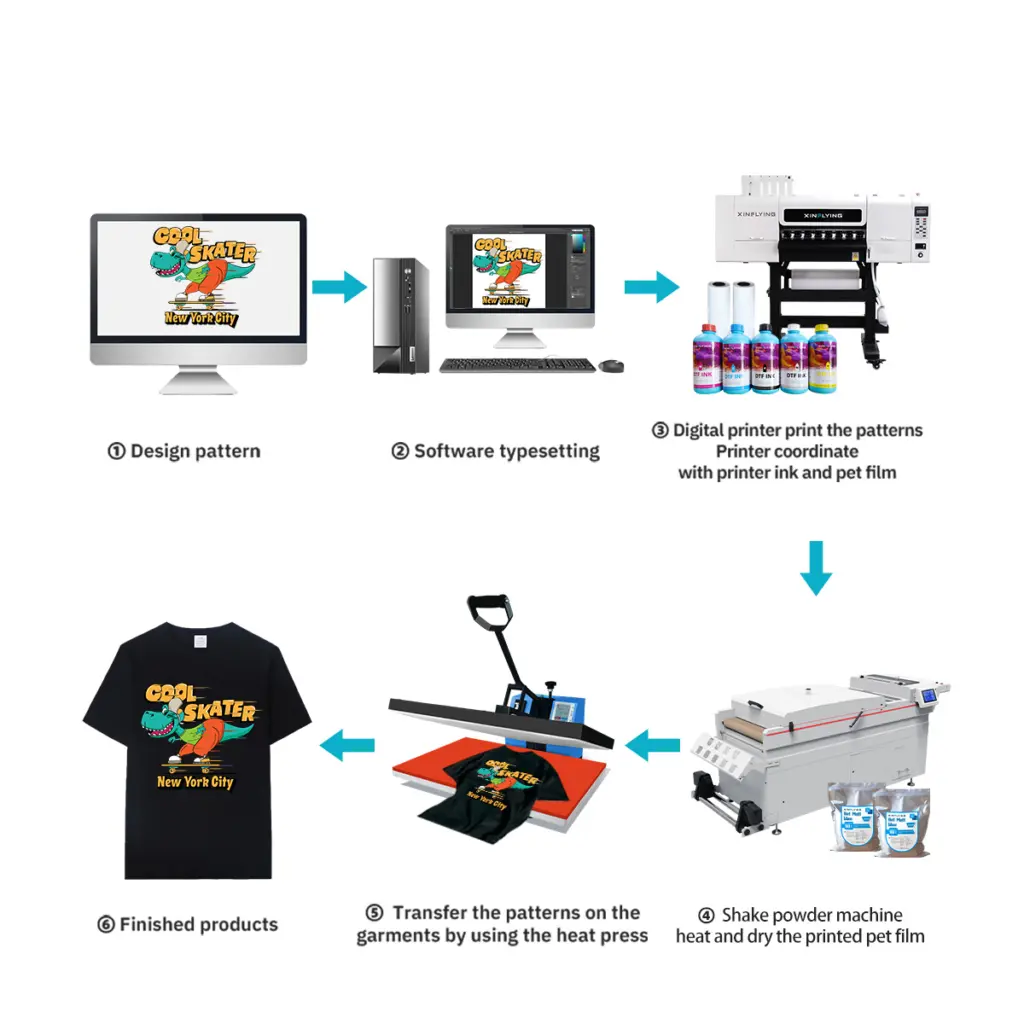
Fare un passo 10: Transfer to Fabric
Now your DTF transfer is ready to be applied to garments.
- Preheat the fabric on the heat press at 160°C for 6–10 seconds to remove moisture
- Position the transfer film on the garment (printed side down)
- Press at 160–165°C with medium pressure for 6–10 seconds
- Peel the film while hot (hot peel film) or allow to cool (cold peel film)
- For best durability, do a second press per 10 seconds with a silicone sheet on top
Troubleshooting Common Setup Issues
| Problema | Likely Cause | Soluzione |
|---|---|---|
| Missing nozzles in test print | Clogged printhead or air in ink line | Run head cleaning cycle 2–3 times |
| White ink not printing | White ink settled or tube blocked | Shake white ink, run white ink purge |
| Film skewing during feed | Incorrect edge guide alignment | Re-align guides, reduce print speed |
| Powder not sticking evenly | Ink under-saturated or film wrong side | Check ink density settings; flip film |
| Transfer peeling after wash | Insufficient curing or press pressure | Increase press time or temperature |
Maintenance Tips to Keep Your DTF Printer Running Smoothly
- Quotidiano: Run a nozzle check before the first print; cap the printhead when not in use
- Settimanale: Clean the capping station, wiper blade, and encoder strip
- Mensile: Check ink tube connections and clean the inside of the powder shaker
- Inchiostro bianco: Stir or circulate daily to prevent settling
Domande frequenti
Q: Can I use any ink in my DTF printer? UN: NO. Always use ink formulated specifically for DTF printing and compatible with your printhead model (per esempio., Epson I3200-A1 or XP600). Using incompatible ink can permanently damage the printhead.
Q: Do I need a separate powder shaker and dryer? UN: Entry-level printers require manual powder application and a standalone heat press for curing. Commercial models like those from Xinflying include integrated powder shaking and curing in a single unit, making the workflow fully automated.
Q: How long does a DTF transfer last? UN: A properly applied DTF transfer can withstand 40+ wash cycles without significant fading when high-quality ink and correct pressing parameters are used.
Q: What fabrics work with DTF printing? UN: DTF works on cotton, poliestere, nylon, miscele, denim, and elastic fabrics — no pre-treatment required, unlike DTG printing.
Conclusione
Setting up a DTF printer correctly from the start saves hours of troubleshooting down the line. The key steps — proper environment, clean nozzles, calibrated RIP settings, and correct pressing parameters — are what separate sharp, durable transfers from poor results.
If you’re looking for a DTF printer that comes with full setup support, assistenza tecnica remota, and free operator training, explore Xinflying’s DTF printer range — from compact A3 desktop units to high-volume 48-inch industrial machines.