Thiết lập máy in DTF lần đầu tiên có thể cảm thấy choáng ngợp, nhưng quá trình này rất đơn giản khi bạn biết các bước. Cho dù bạn vừa mua một máy in A3 DTF cấp thấp cho studio tại nhà hay một chiếc máy 24 inch thương mại cho xưởng in của bạn, hướng dẫn này sẽ hướng dẫn bạn mọi thứ — từ mở hộp đến in lần chuyển tiền đầu tiên của bạn.
Những gì bạn cần trước khi bắt đầu
Trước khi bật nguồn máy, hãy đảm bảo bạn đã chuẩn bị sẵn những thứ sau:
- máy in DTF (với cáp nguồn và cáp USB/ethernet)
- Mực bột màu DTF (CMYK + Trắng)
- Phim PET DTF (tùy chọn vỏ nóng và lạnh)
- Bột kết dính nóng chảy
- phần mềm RIP (chẳng hạn như Maintop, In ảnh, hoặc Flexi)
- Một máy tính chạy Windows 10 hoặc muộn hơn
- Máy ép nhiệt (cho bước chuyển giao)
Bước chân 1: Chọn đúng vị trí
Đặt máy in DTF của bạn ở nơi ổn định, bề mặt phẳng có đủ khoảng trống ở tất cả các mặt - ít nhất 30cm ở bên trái và bên phải để nạp và thu giấy in. Giữ máy in tránh ánh nắng trực tiếp, bụi, và độ ẩm, vì những điều này có thể ảnh hưởng đến chất lượng in và tuổi thọ đầu in.
Môi trường lý tưởng:
- Nhiệt độ: 20–30°C (68–86°F)
- Độ ẩm: 40–60% RH
- Thông gió: Khuyến nghị luồng không khí tốt, đặc biệt là để bảo dưỡng bột
Bước chân 2: Mở hộp và kiểm tra máy in
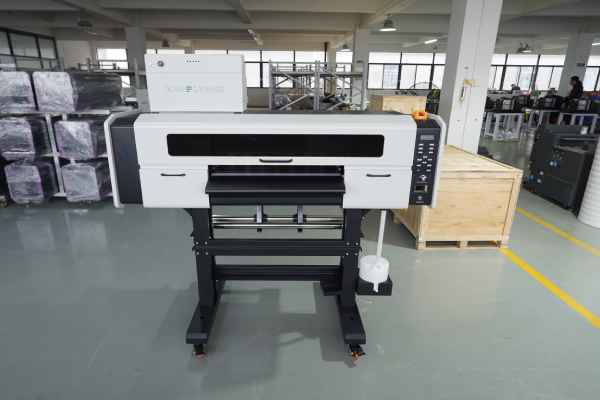
Cẩn thận loại bỏ tất cả các vật liệu đóng gói, bao gồm cả khối xốp, băng bảo vệ, và khóa vận chuyển bên trong máy in. Đây là những thứ rất quan trọng cần phải tháo ra — việc để chúng ở đúng vị trí có thể làm hỏng hộp chứa đầu in khi bạn bật nguồn.
Kiểm tra những điều sau đây trước khi tiếp tục:
- Đầu in sạch và không bị hư hại
- Ống mực được đặt đúng vị trí
- Máy lắc bột và máy sấy (nếu tích hợp) được kết nối
- Tất cả các loại cáp và phụ kiện được bao gồm
Bước chân 3: Cài đặt trình điều khiển máy in
- Cắm ổ USB đi kèm hoặc tải driver từ trang web của nhà sản xuất
- Chạy trình cài đặt và làm theo hướng dẫn trên màn hình
- Kết nối máy in của bạn với máy tính qua cáp USB hoặc cáp ethernet
- Xác nhận máy in xuất hiện trong Thiết bị và Máy in trên hệ thống Windows của bạn
Mẹo: Luôn cài đặt trình điều khiển trước khi kết nối cáp USB, trừ khi được người cài đặt hướng dẫn khác.
Bước chân 4: Cài đặt và cấu hình phần mềm RIP
XÉ (Xử lý ảnh raster) phần mềm rất cần thiết cho việc in DTF - nó kiểm soát mật độ mực, lớp mực trắng, hồ sơ màu, và tốc độ in. Không có nó, bạn không thể đạt được kết quả chuyên nghiệp.
Các bước thiết lập:
- Cài đặt phần mềm RIP của bạn (máy chủ 6.1 thường được sử dụng với máy in Xinflying)
- Thêm kiểu máy in của bạn từ danh sách thiết bị
- Tải cấu hình màu ICC do nhà sản xuất máy in của bạn cung cấp
- Đặt chế độ in:
- Lớp màu đầu tiên, rồi Trắng (tiêu chuẩn cho DTF)
- Độ mờ mực trắng: bắt đầu lúc 100% và điều chỉnh dựa trên kết quả kiểm tra
- Đặt độ phân giải in: 600×1200 dpi cho chất lượng tiêu chuẩn; 720×1440 dpi cho chi tiết đẹp
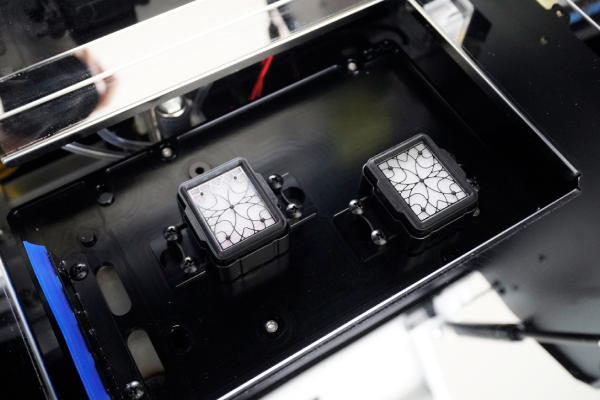
Bước chân 5: Đổ đầy hệ thống mực
Máy in DTF sử dụng hệ thống mực số lượng lớn với hộp mực hoặc bình chứa riêng biệt cho từng kênh màu: Cyan, Magenta, Màu vàng, Đen, và trắng.
- Lắc Mực trắng đóng chai kỹ trong 2–3 phút trước khi đổ - mực trắng lắng nhanh và phải trộn đều
- Đổ đầy mỗi bình đến mức chỉ định, tránh đổ đầy
- Mồi hệ thống mực bằng bảng bảo trì của máy in - thao tác này sẽ hút mực qua các ống đến đầu in
- Chạy một kiểm tra vòi phun để xác nhận tất cả các kênh đang kích hoạt chính xác
Quan trọng: Mực trắng yêu cầu bảo trì thường xuyên hơn CMYK. Nếu máy in không hoạt động lâu hơn 24 giờ, chạy một chu trình làm sạch ngắn trước khi in.
Bước chân 6: Tải phim DTF
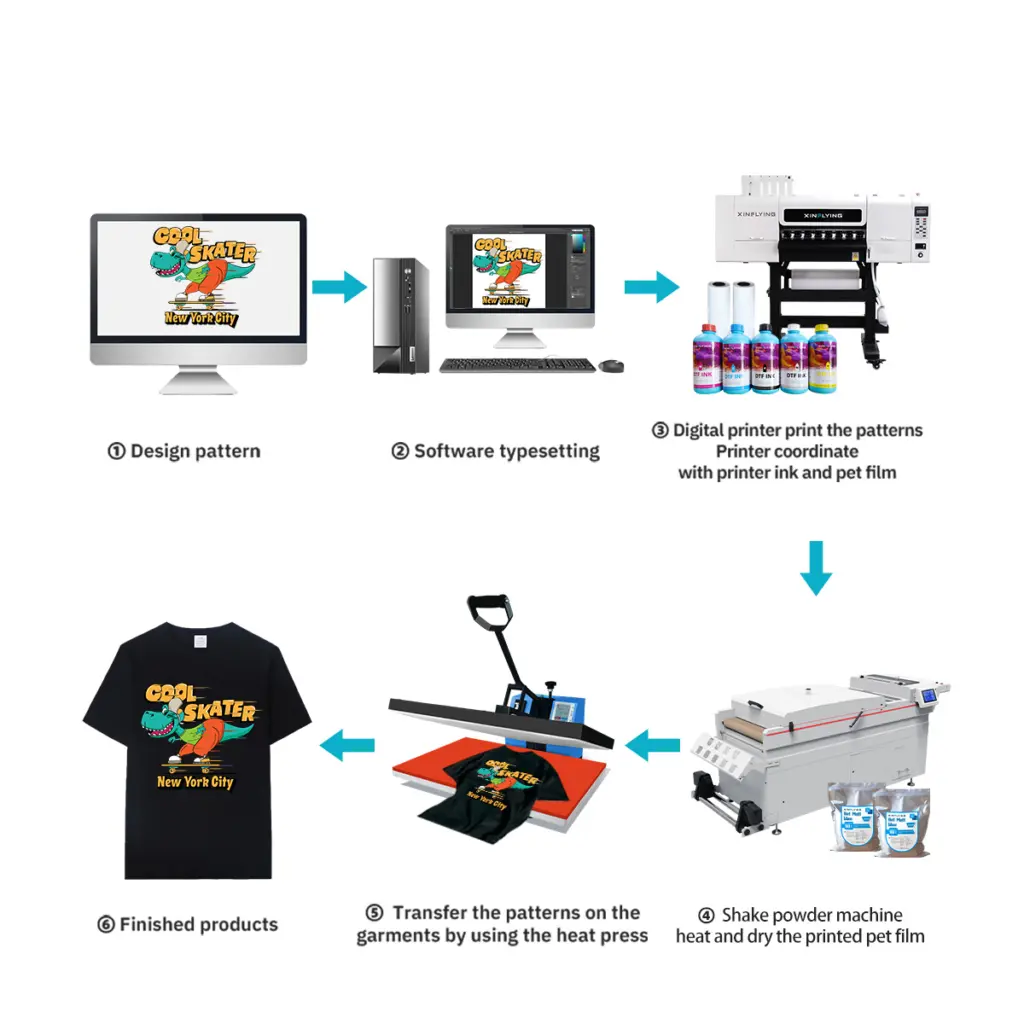
In DTF được thực hiện trên phim PET, không phải vải. Phim được nạp vào máy in giống như giấy cuộn tiêu chuẩn.
- Gắn cuộn phim lên giá đỡ giấy ở phía sau máy in
- Đưa phim qua trục lăn và căn chỉnh nó với các thanh dẫn hướng cạnh
- Đảm bảo có thể in được (tráng) hướng mặt lên - đây thường là mặt bóng hơn hoặc hơi dính
- Đặt độ rộng phương tiện trong cả bảng điều khiển máy in và phần mềm RIP
- Xác nhận màng nạp trơn tru mà không bị lệch
Bước chân 7: In mẫu thử
Trước khi thực hiện một công việc đầy đủ, luôn in mẫu kiểm tra vòi phun:
- Trong bảng điều khiển máy in, đi tới Bảo trì → Kiểm tra vòi phun
- In mẫu thử lên một miếng phim nhỏ
- Kiểm tra kết quả - tất cả các đường phải thẳng và không bị đứt đoạn
- Nếu thiếu bất kỳ vòi phun nào, chạy một Làm sạch đầu chu kỳ và lặp lại kiểm tra
Sau khi kiểm tra vòi phun đã sạch, in một hình ảnh thử nghiệm nhỏ (10×10 cm) để xác minh độ chính xác của màu sắc, mật độ mực trắng, và căn chỉnh lớp.
Bước chân 8: Bôi bột dính
Sau khi in, Phim ra bằng mực ướt cần bôi bột kết dính trước khi đóng rắn.
Phương pháp thủ công:
- Đổ bột keo nóng chảy lên vùng in khi mực vẫn còn ướt
- Lắc nhẹ bột thừa - chỉ còn lại bột dính vào mực ướt
- Chạm vào mặt sau của màng để loại bỏ bột thừa
Phương pháp tự động (máy lắc tích hợp): Hầu hết các máy in DTF thương mại đều có máy phun bột tự động - màng chuyển trực tiếp từ máy in vào vùng bột, sau đó cho vào lò sấy.
Mẹo: Dùng bột mịn (80–120 lưới) cho các thiết kế chi tiết và bột thô cho vải dày.
Bước chân 9: Chữa bột
Bột kết dính phải được nấu chảy và xử lý để liên kết tốt với lớp in.
- Máy sấy lò/đường hầm: 130–160°C trong 2–3 phút (đề nghị sản xuất)
- Máy ép nhiệt: 160°C trong 30–60 giây, không có áp lực, nắp hơi mở để hơi ẩm thoát ra ngoài
Chất chuyển đã xử lý sẽ có vẻ hơi bóng và bột phải tan chảy hoàn toàn - không nhìn thấy hạt trắng.
Bước chân 10: Chuyển sang vải
Bây giờ chuyển DTF của bạn đã sẵn sàng để áp dụng cho hàng may mặc.
- Làm nóng vải trên máy ép nhiệt ở 160°C trong 6–10 giây để loại bỏ hơi ẩm
- Định vị màng chuyển trên quần áo (mặt in xuống)
- Nhấn vào 160–165°C với áp suất trung bình trong 6–10 giây
- Bóc màng khi còn nóng (màng vỏ nóng) hoặc để nguội (màng vỏ lạnh)
- Để có độ bền tốt nhất, làm một nhấn lần thứ hai vì 10 giây với một tấm silicon ở trên
Khắc phục sự cố thiết lập thường gặp
| Vấn đề | Nguyên nhân có thể xảy ra | Giải pháp |
|---|---|---|
| Thiếu đầu phun trong bản in thử | Đầu in bị tắc hoặc có không khí trong đường mực | Chạy chu trình làm sạch đầu 2-3 lần |
| Mực trắng không in được | Mực trắng lắng xuống hoặc ống bị tắc | Lắc mực trắng, chạy tẩy mực trắng |
| Phim bị lệch trong quá trình nạp | Căn chỉnh hướng dẫn cạnh không chính xác | Căn chỉnh lại hướng dẫn, giảm tốc độ in |
| Bột không dính đều | Mực chưa bão hòa hoặc mặt phim sai | Kiểm tra cài đặt mật độ mực; phim lật |
| Chuyển bong tróc sau khi rửa | Áp suất đóng rắn hoặc ép không đủ | Tăng thời gian hoặc nhiệt độ ép |
Mẹo bảo trì để giữ cho máy in DTF của bạn chạy trơn tru
- Hằng ngày: Chạy kiểm tra đầu phun trước bản in đầu tiên; đậy nắp đầu in khi không sử dụng
- hàng tuần: Làm sạch trạm đóng nắp, lưỡi gạt nước, và dải mã hóa
- Hàng tháng: Kiểm tra các kết nối ống mực và vệ sinh bên trong máy lắc bột
- Mực trắng: Khuấy hoặc tuần hoàn hàng ngày để tránh lắng đọng
Câu hỏi thường gặp
Q: Tôi có thể sử dụng bất kỳ loại mực nào trong máy in DTF của mình không? MỘT: KHÔNG. Luôn sử dụng mực có công thức đặc biệt để in DTF và tương thích với kiểu đầu in của bạn (VÍ DỤ., Epson I3200-A1 hoặc XP600). Sử dụng mực không tương thích có thể làm hỏng đầu in vĩnh viễn.
Q: Tôi có cần máy lắc và máy sấy bột riêng không? MỘT: Máy in cấp cơ bản yêu cầu ứng dụng bột thủ công và máy ép nhiệt độc lập để xử lý. Các mẫu thương mại như của Xinflying bao gồm việc lắc và xử lý bột tích hợp trong một thiết bị duy nhất, làm cho quy trình làm việc hoàn toàn tự động.
Q: Quá trình chuyển DTF kéo dài bao lâu? MỘT: Việc chuyển DTF được áp dụng đúng cách có thể chịu được 40+ chu trình giặt mà không bị phai màu đáng kể khi sử dụng mực chất lượng cao và thông số ép chính xác.
Q: Loại vải nào phù hợp với in DTF? MỘT: DTF hoạt động trên bông, polyester, nylon, pha trộn, vải jean, và vải đàn hồi - không cần xử lý trước, không giống như in DTG.
Phần kết luận
Thiết lập máy in DTF chính xác ngay từ đầu giúp tiết kiệm hàng giờ khắc phục sự cố. Các bước chính - môi trường thích hợp, vòi phun sạch, cài đặt RIP đã hiệu chỉnh, và các thông số nhấn chính xác - là những gì riêng biệt, chuyển giao bền vững từ kết quả kém.
Nếu bạn đang tìm kiếm một máy in DTF có hỗ trợ thiết lập đầy đủ, hỗ trợ kỹ thuật từ xa, và đào tạo người vận hành miễn phí, khám phá dòng máy in DTF của Xinflying — từ máy tính để bàn A3 nhỏ gọn đến máy công nghiệp 48 inch khối lượng lớn.