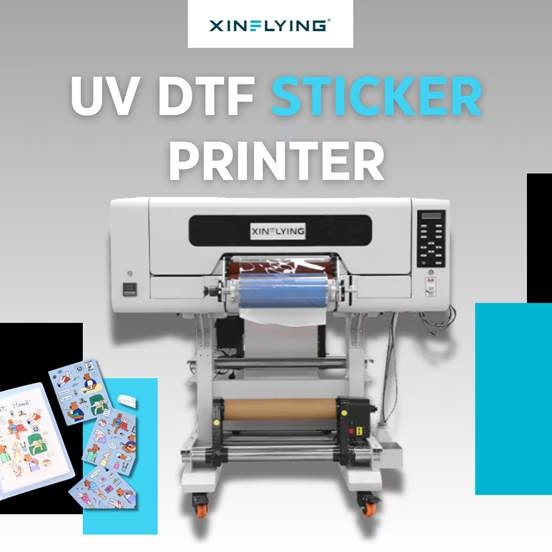
DTF-tulostimen asentaminen ensimmäistä kertaa voi tuntua ylivoimaiselta, mutta prosessi on suoraviivainen, kun tiedät vaiheet. Oletpa juuri ostanut aloitustason A3 DTF -tulostimen kotistudioosi tai kaupallisen 24 tuuman koneen painotaloasi, Tämä opas opastaa sinut läpi kaiken – pakkauksen purkamisesta ensimmäisen siirron tulostamiseen.
Mitä tarvitset ennen kuin aloitat
Ennen kuin käynnistät koneen, varmista, että sinulla on seuraavat asiat valmiina:
- DTF tulostin (virtajohdolla ja USB/ethernet-kaapelilla)
- DTF pigmenttimuste (CMYK + Valkoinen)
- DTF Pet -elokuva (kuuma- ja kylmäkuoritusvaihtoehdot)
- Kuumasulate liimajauhe
- RIP ohjelmisto (kuten Maintop, PhotoPrint, tai Flexi)
- Windows-käyttöinen tietokone 10 tai myöhemmin
- Lämmönpuristuskone (siirtovaihetta varten)
Askel 1: Valitse oikea sijainti
Aseta DTF-kirjoitin alustalle, tasainen pinta, jossa on riittävästi tilaa kaikille sivuille – vähintään 30 cm vasemmalla ja oikealla materiaalin syöttöä ja keräämistä varten. Pidä tulostin poissa suorasta auringonpaisteesta, pöly, ja kosteus, koska ne voivat vaikuttaa tulostuslaatuun ja tulostuspäiden käyttöikään.
Ihanteellinen ympäristö:
- Lämpötila: 20–30°C (68–86°F)
- Kosteus: 40-60 % RH
- Ilmanvaihto: Hyvä ilmanvaihto suositeltava, erityisesti jauhekovettumiseen
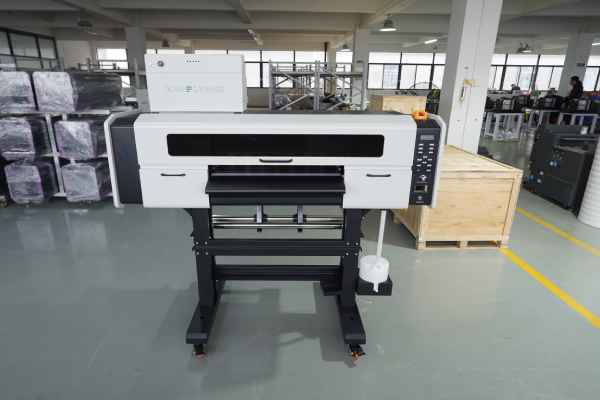
Askel 2: Pura pakkaus ja tarkista tulostin
Poista varovasti kaikki pakkausmateriaalit, mukaan lukien vaahtolohkot, suojanauhat, ja kuljetuslukot tulostimen sisällä. Ne on erittäin tärkeää poistaa – niiden jättäminen paikoilleen voi vahingoittaa tulostuspään vaunua, kun käynnistät virran.
Tarkista seuraavat asiat ennen kuin jatkat:
- Tulostuspää on puhdas ja ehjä
- Musteputket ovat kunnolla paikoillaan
- Jauheravistin ja kuivausyksikkö (jos integroitu) ovat yhteydessä
- Mukana kaikki kaapelit ja tarvikkeet
Askel 3: Asenna tulostinohjain
- Aseta mukana toimitettu USB-asema tai lataa ohjain valmistajan verkkosivustolta
- Suorita asennusohjelma ja seuraa näytön ohjeita
- Liitä tulostin tietokoneeseen USB- tai Ethernet-kaapelilla
- Varmista, että tulostin tulee näkyviin Laitteet ja tulostimet Windows-järjestelmässäsi
Kärki: Asenna ohjain aina ennen USB-kaapelin liittämistä, ellei asentaja ole toisin ohjeistanut.
Askel 4: Asenna ja määritä RIP-ohjelmisto
RIP (Rasterikuvan käsittely) ohjelmisto on välttämätön DTF-tulostuksessa – se ohjaa musteen tiheyttä, valkoiset mustekerrokset, väriprofiilit, ja tulostusnopeus. Ilman sitä, et voi saavuttaa ammattimaisia tuloksia.
Asennusvaiheet:
- Asenna RIP-ohjelmisto (Maintop 6.1 käytetään yleisesti Xinflying-tulostimien kanssa)
- Lisää tulostimesi malli laiteluettelosta
- Lataa tulostimen valmistajan toimittama ICC-väriprofiili
- Aseta tulostustila:
- Värikerros ensin, sitten Valkoinen (standardi DTF:lle)
- Valkoisen musteen opasiteetti: alkaa klo 100% ja säädä testitulosten perusteella
- Aseta tulostustarkkuus: 600×1200 dpi vakiolaatua varten; 720×1440 dpi tarkkoja yksityiskohtia varten
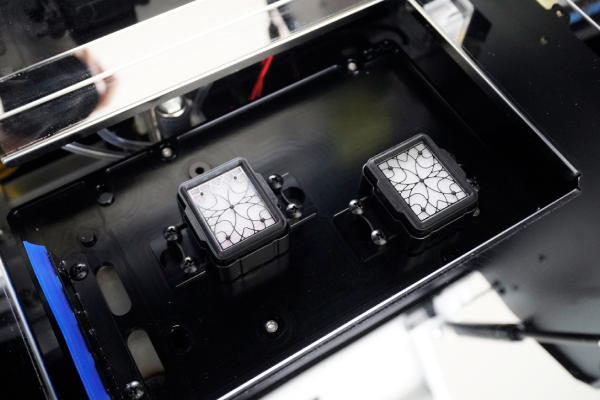
Askel 5: Täytä mustejärjestelmä
DTF-tulostimet käyttävät bulkkimustejärjestelmää, jossa on erilliset patruunat tai säiliöt jokaiselle värikanavalle: Syaani, Magenta, Keltainen, Musta, ja Valkoinen.
- Ravista Valkoinen muste pulloa huolellisesti 2–3 minuuttia ennen täyttöä – valkoinen muste laskeutuu nopeasti ja on sekoitettava hyvin
- Täytä jokainen säiliö ilmoitetulle tasolle, ylitäyttöä välttäen
- Esittele mustejärjestelmä tulostimen huoltopaneelin avulla – tämä vetää mustetta putkien läpi tulostuspäähän
- Juokse a suuttimen tarkistus varmistaaksesi, että kaikki kanavat toimivat oikein
Tärkeää: Valkoinen muste vaatii useammin huoltoa kuin CMYK. Jos tulostin on käyttämättömänä yli 24 tuntia, suorita lyhyt puhdistusjakso ennen tulostusta.
Askel 6: Lataa DTF-kalvo
DTF-tulostus tehdään PET-kalvolle, ei kangasta. Kalvo asetetaan tulostimeen kuten tavallinen rullamateriaali.
- Kiinnitä filmirulla tulostimen takaosassa olevaan materiaalipidikkeeseen
- Syötä kalvo levyn läpi ja kohdista se reunaohjaimiin
- Varmista, että tulostettava (päällystetty) puoli ylöspäin — tämä on yleensä kiiltävämpi tai hieman tahmea puoli
- Aseta materiaalin leveys sekä tulostimen ohjauspaneelista että RIP-ohjelmistosta
- Varmista, että kalvo syöttää tasaisesti ilman vinoutta
Askel 7: Tulosta testikuvio
Ennen kuin suoritat täyden työn, tulosta aina suuttimien tarkistuskuvio:
- Tulostimen ohjauspaneelissa, mene kohtaan Huolto → Suutintarkastus
- Tulosta testikuvio pienelle filmipalalle
- Tarkista tulos – kaikkien viivojen tulee olla suoria ja katkeamattomia
- Jos suuttimia puuttuu, ajaa a Pään puhdistus sykli ja toista tarkistus
Kun suutin on puhdas, tulosta pieni testikuva (10× 10 cm) värin tarkkuuden tarkistamiseksi, valkoisen musteen tiheys, ja kerrosten kohdistus.
Askel 8: Levitä liimajauhetta
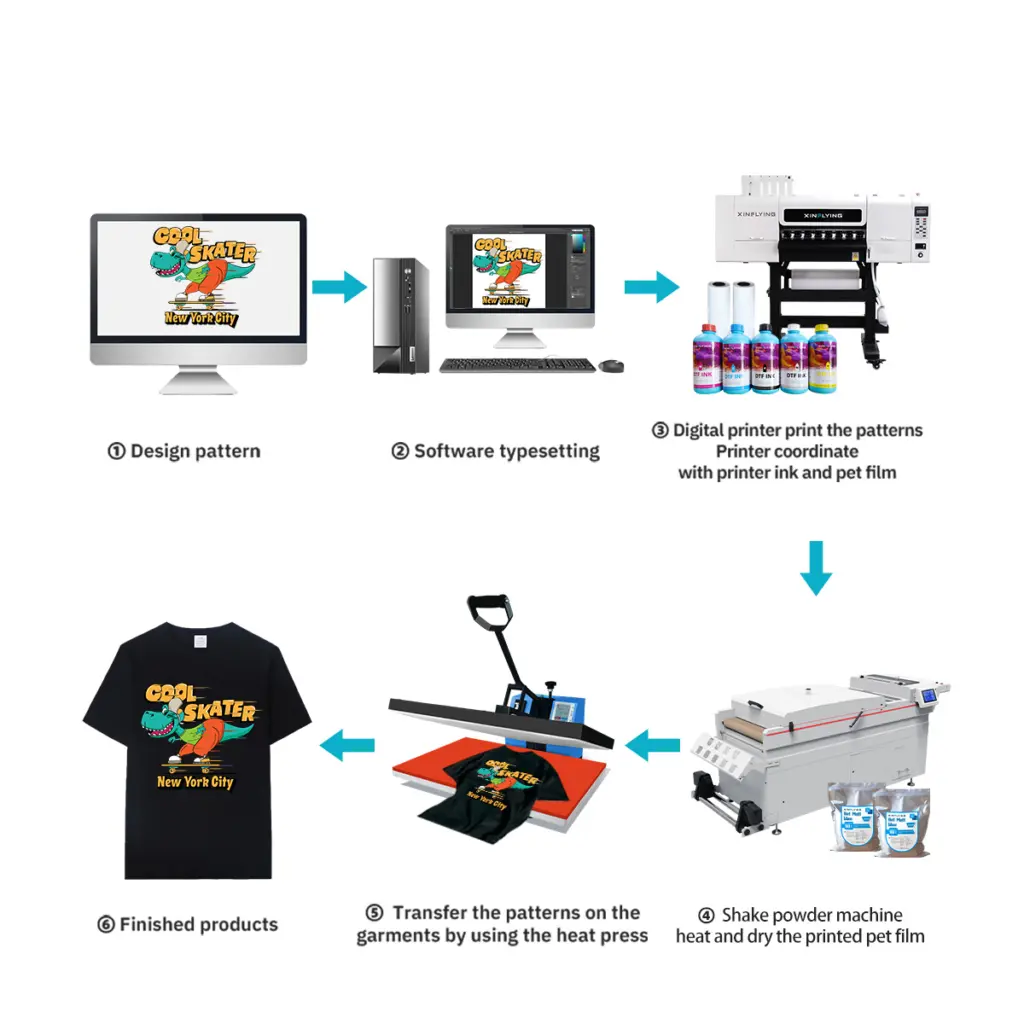
Tulostuksen jälkeen, kalvo tulee ulos märällä musteella, joka tarvitsee liimajauhetta ennen kovettumista.
Manuaalinen menetelmä:
- Kaada kuumasulateliimajauhetta painetun alueen päälle musteen ollessa vielä märkää
- Ravista ylimääräinen jauhe varovasti – jäljelle saa jäädä vain märkään musteeseen tarttuvaa jauhetta
- Napauta kalvon takaosaa poistaaksesi irtonaisen jauheen
Automatisoitu menetelmä (integroitu ravistinyksikkö): Useimmissa kaupallisissa DTF-tulostimissa on automaattinen jauheapplikaattori – kalvo kulkee suoraan tulostimesta jauhevyöhykkeelle, sitten uuniin.
Kärki: Käytä hienoa jauhetta (80– 120 verkkoa) yksityiskohtaisia malleja ja karkeampaa jauhetta paksuille kankaille.
Askel 9: Koveta jauhe
Liimajauhe on sulatettava ja kovetettava, jotta se kiinnittyy kunnolla painokerrokseen.
- Uuni/tunnelikuivain: 130-160°C 2-3 minuuttia (suositellaan tuotantoon)
- Lämpöpuristin: 160°C 30–60 sekuntia, ei paineita, kansi hieman auki, jotta kosteus pääsee poistumaan
Kovettunut siirtoaine näyttää hieman kiiltävältä ja jauheen tulee olla täysin sulanut – valkoisia rakeita ei saa olla näkyvissä.
Askel 10: Siirto kankaalle
Nyt DTF-siirtosi on valmis käytettäväksi vaatteissa.
- Esilämmitä kangasta lämpöpuristimessa 160 °C:ssa 6–10 sekuntia kosteuden poistamiseksi
- Aseta siirtokalvo vaatteen päälle (painettu puoli alaspäin)
- Paina klo 160–165°C keskipaineella 6–10 sekunnin ajan
- Kuori kalvo kuumana (hot peel -kalvo) tai anna jäähtyä (kylmäkuorittava kalvo)
- Parhaan kestävyyden takaamiseksi, tee a toinen painallus varten 10 sekuntia silikonilevyn päällä
Yleisten asennusongelmien vianmääritys
| Ongelma | Todennäköinen syy | Ratkaisu |
|---|---|---|
| Suuttimet puuttuvat testitulostuksessa | Tukkeutunut tulostuspää tai ilma mustelinjassa | Suorita pään puhdistusjakso 2–3 kertaa |
| Valkoinen muste ei tulosta | Valkoinen muste on laskeutunut tai putki tukossa | Ravista valkoista mustetta, suorita valkoisen musteen puhdistus |
| Kalvon vinouminen syötteen aikana | Väärä reunaohjaimen kohdistus | Kohdista ohjaimet uudelleen, vähentää tulostusnopeutta |
| Jauhe ei tartu tasaisesti | Muste alikyllästynyt tai kalvon väärä puoli | Tarkista musteen tiheysasetukset; kääntää elokuva |
| Siirrä kuorinta pesun jälkeen | Riittämätön kovettuminen tai puristuspaine | Lisää painallusaikaa tai lämpötilaa |
Huoltovinkkejä DTF-tulostimesi sujuvaan käyntiin
- Päivittäin: Suorita suuttimien tarkistus ennen ensimmäistä tulostusta; sulje tulostuspää, kun sitä ei käytetä
- Viikoittain: Puhdista sulkuasema, pyyhkimen sulka, ja enkooderinauha
- Kuukausittain: Tarkista musteputkien liitännät ja puhdista jauheravistimen sisäpuoli
- Valkoinen muste: Sekoita tai kierrätä päivittäin, jotta se ei laskeudu
Usein kysytyt kysymykset
K: Voinko käyttää mitä tahansa mustetta DTF-tulostimessani? A: Ei. Käytä aina erityisesti DTF-tulostukseen suunniteltua mustetta, joka on yhteensopiva tulostuspäämallisi kanssa (ESIM., Epson I3200-A1 tai XP600). Yhteensopimattoman musteen käyttö voi vahingoittaa tulostuspäätä pysyvästi.
K: Tarvitsenko erillisen jauheravistimen ja kuivausrummun?? A: Aloitustason tulostimet vaativat manuaalisen jauhelevityksen ja erillisen lämpöpuristimen kovettumiseen. Kaupalliset mallit, kuten Xinflyingin mallit, sisältävät integroidun jauheravistelun ja kovetuksen yhdessä yksikössä, työnkulku on täysin automatisoitu.
K: Kuinka kauan DTF-siirto kestää? A: Oikein käytetty DTF-siirto kestää 40+ pesujaksot ilman merkittävää haalistumista, kun käytetään korkealaatuista mustetta ja oikeita puristusparametreja.
K: Mitkä kankaat toimivat DTF-tulostuksen kanssa? A: DTF toimii puuvillalla, polyesteri, nylon, sekoituksia, denim, ja elastiset kankaat – esikäsittelyä ei tarvita, toisin kuin DTG-tulostus.
Johtopäätös
DTF-tulostimen oikein määrittäminen alusta alkaen säästää tuntikausia vianmäärityksessä. Tärkeimmät vaiheet – oikea ympäristö, puhtaat suuttimet, kalibroidut RIP-asetukset, ja oikeat puristusparametrit – ne erottavat terävät, kestäviä siirtoja huonoista tuloksista.
Jos etsit DTF-tulostinta, jonka mukana tulee täydellinen asennustuki, tekninen etäapu, ja ilmainen kuljettajakoulutus, tutustu Xinflyingin DTF-tulostinvalikoimaan — kompakteista A3-pöytäkoneista suurivolyymillisiin 48 tuuman teollisuuskoneisiin.