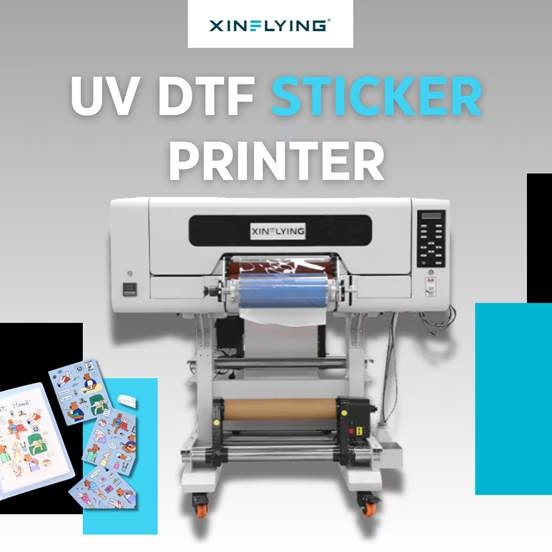
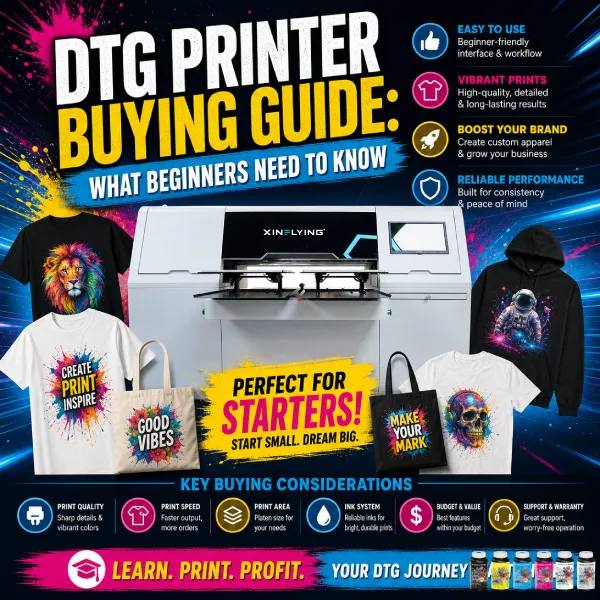
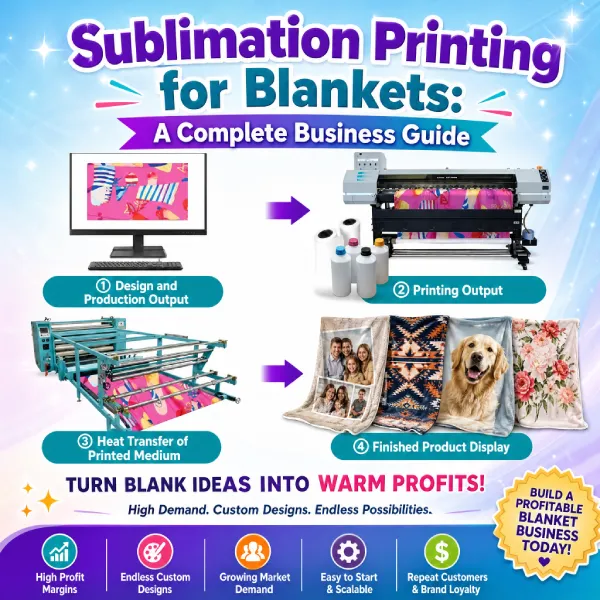
การตั้งค่าเครื่องพิมพ์ DTF เป็นครั้งแรกอาจทำให้รู้สึกยุ่งยากใจ, แต่กระบวนการจะตรงไปตรงมาเมื่อคุณรู้ขั้นตอนแล้ว. ไม่ว่าคุณจะเพิ่งซื้อเครื่องพิมพ์ A3 DTF ระดับเริ่มต้นสำหรับโฮมสตูดิโอของคุณ หรือเครื่องขนาด 24 นิ้วเชิงพาณิชย์สำหรับร้านพิมพ์ของคุณ, คู่มือนี้จะอธิบายทุกสิ่งตั้งแต่การแกะกล่องไปจนถึงการพิมพ์การถ่ายโอนครั้งแรกของคุณ.
สิ่งที่คุณต้องการก่อนเริ่มงาน
ก่อนเปิดเครื่อง, ตรวจสอบให้แน่ใจว่าคุณมีสิ่งต่อไปนี้พร้อม:
- เครื่องพิมพ์ดีทีเอฟ (พร้อมสายไฟและสาย USB/อีเธอร์เน็ต)
- หมึกสี DTF (สีซีเอ็มวายเค + สีขาว)
- ฟิล์ม PET DTF (ตัวเลือกการปอกเปลือกร้อนและเย็น)
- ผงกาวร้อนละลาย
- ซอฟต์แวร์ RIP (เช่น เมนท็อป, โฟโต้พริ้นท์, หรือเฟล็กซี่)
- คอมพิวเตอร์ที่ใช้ Windows 10 หรือหลังจากนั้น
- เครื่องกดความร้อน (สำหรับขั้นตอนการโอนเงิน)
ขั้นตอน 1: เลือกสถานที่ที่เหมาะสม
วางเครื่องพิมพ์ DTF ของคุณไว้บนที่มั่นคง, พื้นผิวเรียบที่มีระยะห่างเพียงพอจากทุกด้าน — อย่างน้อย 30 ซม. ด้านซ้ายและขวาสำหรับการป้อนและรวบรวมสื่อ. เก็บเครื่องพิมพ์ให้ห่างจากแสงแดดโดยตรง, ฝุ่น, และความชื้น, เนื่องจากอาจส่งผลต่อคุณภาพการพิมพ์และอายุการใช้งานของหัวพิมพ์.
สภาพแวดล้อมในอุดมคติ:
- อุณหภูมิ: 20–30°ซ (68–86 องศาฟาเรนไฮต์)
- ความชื้น: 40–60% ความชื้นสัมพัทธ์
- การระบายอากาศ: แนะนำการไหลเวียนของอากาศที่ดี, โดยเฉพาะการบ่มด้วยผง
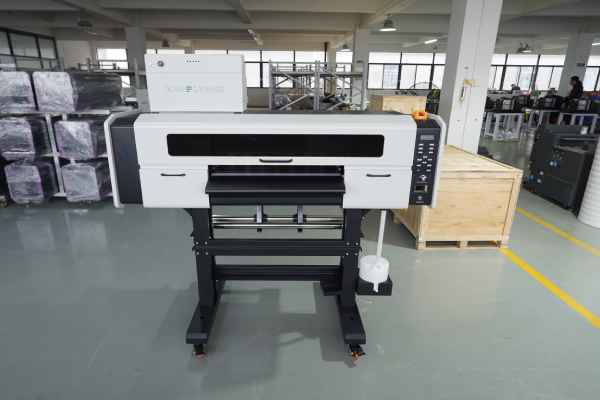
ขั้นตอน 2: แกะกล่องและตรวจสอบเครื่องพิมพ์
นำวัสดุบรรจุภัณฑ์ทั้งหมดออกอย่างระมัดระวัง, รวมถึงบล็อคโฟม, เทปป้องกัน, และล็อคการขนส่งภายในเครื่องพิมพ์. สิ่งเหล่านี้เป็นสิ่งสำคัญในการถอดออก - การปล่อยไว้กับที่อาจทำให้แคร่หัวพิมพ์เสียหายได้เมื่อคุณเปิดเครื่อง.
ตรวจสอบสิ่งต่อไปนี้ก่อนดำเนินการต่อ:
- หัวพิมพ์สะอาดและไม่เสียหาย
- ท่อหมึกอยู่ในตำแหน่งที่ถูกต้อง
- เครื่องเขย่าผงและเครื่องอบแห้ง (หากบูรณาการ) มีการเชื่อมต่อ
- รวมสายเคเบิลและอุปกรณ์เสริมทั้งหมดแล้ว
ขั้นตอน 3: ติดตั้งไดรเวอร์เครื่องพิมพ์
- ใส่ไดรฟ์ USB ที่ให้มาหรือดาวน์โหลดไดรเวอร์จากเว็บไซต์ของผู้ผลิต
- เรียกใช้โปรแกรมติดตั้งและปฏิบัติตามคำแนะนำบนหน้าจอ
- เชื่อมต่อเครื่องพิมพ์ของคุณเข้ากับคอมพิวเตอร์ผ่าน USB หรือสายอีเธอร์เน็ต
- ยืนยันว่าเครื่องพิมพ์ปรากฏขึ้น อุปกรณ์และเครื่องพิมพ์ บนระบบ Windows ของคุณ
เคล็ดลับ: ติดตั้งไดรเวอร์ก่อนเชื่อมต่อสาย USB ทุกครั้ง, เว้นแต่ผู้ติดตั้งจะสั่งเป็นอย่างอื่น.
ขั้นตอน 4: ติดตั้งและกำหนดค่าซอฟต์แวร์ RIP
ฉีก (การประมวลผลภาพแรสเตอร์) ซอฟต์แวร์เป็นสิ่งจำเป็นสำหรับการพิมพ์ DTF โดยจะควบคุมความหนาแน่นของหมึก, ชั้นหมึกสีขาว, โปรไฟล์สี, และความเร็วในการพิมพ์. หากไม่มีมัน, คุณไม่สามารถบรรลุผลระดับมืออาชีพได้.
ขั้นตอนการตั้งค่า:
- ติดตั้งซอฟต์แวร์ RIP ของคุณ (เมนท็อป 6.1 มักใช้กับเครื่องพิมพ์ Xinflying)
- เพิ่มรุ่นเครื่องพิมพ์ของคุณจากรายการอุปกรณ์
- โหลดโปรไฟล์สี ICC ที่ได้รับจากผู้ผลิตเครื่องพิมพ์ของคุณ
- ตั้งค่าโหมดการพิมพ์:
- ลงชั้นสีก่อน, แล้วก็ไวท์ (มาตรฐาน DTF)
- ความทึบของหมึกสีขาว: เริ่มต้นที่ 100% และปรับตามผลการทดสอบ
- ตั้งค่าความละเอียดในการพิมพ์: 600×1200 dpi สำหรับคุณภาพมาตรฐาน; 720×1440 dpi เพื่อรายละเอียดที่ดี
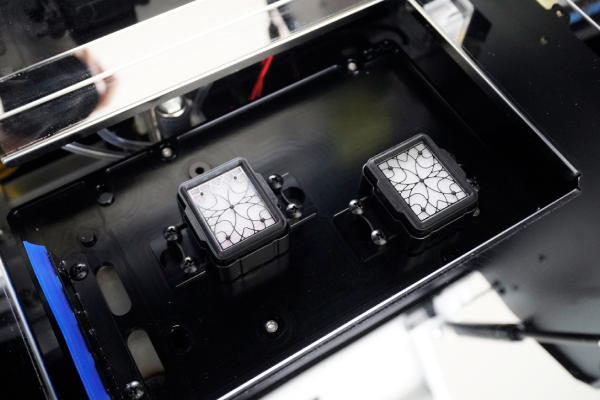
ขั้นตอน 5: เติมระบบหมึก
เครื่องพิมพ์ DTF ใช้ระบบหมึกเทกองพร้อมตลับหมึกหรือถังแยกสำหรับแต่ละช่องสี: สีฟ้า, สีม่วงแดง, สีเหลือง, สีดำ, และสีขาว.
- เขย่า หมึกขาว ขวดให้ละเอียดเป็นเวลา 2-3 นาทีก่อนเติม — หมึกสีขาวจะตกตะกอนอย่างรวดเร็วและต้องผสมให้เข้ากัน
- เติมแต่ละถังให้ถึงระดับที่ระบุ, หลีกเลี่ยงการเติมมากเกินไป
- รองพื้นระบบหมึกโดยใช้แผงบำรุงรักษาของเครื่องพิมพ์ ซึ่งจะดึงหมึกผ่านท่อไปยังหัวพิมพ์
- วิ่ง ตรวจสอบหัวฉีด เพื่อยืนยันว่าทุกช่องยิงได้ถูกต้อง
สำคัญ: หมึกสีขาวต้องบำรุงรักษาบ่อยกว่า CMYK. หากเครื่องพิมพ์ไม่ได้ใช้งานเป็นเวลานานกว่านั้น 24 ชั่วโมง, รันรอบการทำความสะอาดสั้นๆ ก่อนพิมพ์.
ขั้นตอน 6: ใส่ฟิล์ม DTF
การพิมพ์ DTF ทำได้บนแผ่นฟิล์ม PET, ไม่ใช่ผ้า. ฟิล์มจะถูกโหลดเข้าเครื่องพิมพ์เหมือนกับสื่อม้วนมาตรฐาน.
- ติดตั้งม้วนฟิล์มบนที่วางสื่อที่ด้านหลังของเครื่องพิมพ์
- ป้อนฟิล์มผ่านแท่นวาง และจัดแนวให้ตรงกับแนวกั้นขอบ
- รับรองว่า พิมพ์ได้ (เคลือบ) หงายหน้าขึ้น — โดยปกติจะเป็นด้านที่แวววาวกว่าหรือไม่มีรสนิยมที่ดีเล็กน้อย
- ตั้งค่าความกว้างของสื่อสิ่งพิมพ์ทั้งในแผงควบคุมเครื่องพิมพ์และซอฟต์แวร์ RIP
- ยืนยันว่าฟิล์มป้อนได้อย่างราบรื่นโดยไม่เอียง
ขั้นตอน 7: พิมพ์รูปแบบทดสอบ
ก่อนจะลุยงานเต็มที่, พิมพ์ลวดลายตรวจสอบหัวฉีดเสมอ:
- ในแผงควบคุมเครื่องพิมพ์, ไปที่ การบำรุงรักษา → การตรวจสอบหัวฉีด
- พิมพ์รูปแบบทดสอบลงบนฟิล์มชิ้นเล็กๆ
- ตรวจสอบผลลัพธ์ — เส้นทั้งหมดควรตรงและไม่ขาดตอน
- หากหัวฉีดตัวใดหายไป, วิ่ง การทำความสะอาดหัว วนรอบและทำการตรวจสอบซ้ำ
เมื่อตรวจสอบหัวฉีดสะอาดแล้ว, พิมพ์ภาพทดสอบขนาดเล็ก (10×10 ซม) เพื่อตรวจสอบความถูกต้องของสี, ความหนาแน่นของหมึกสีขาว, และการจัดตำแหน่งชั้น.
ขั้นตอน 8: ใช้ผงกาว
หลังจากการพิมพ์, ฟิล์มออกด้วยหมึกเปียกที่ต้องทาผงกาวก่อนบ่ม.
วิธีการด้วยตนเอง:
- เทผงกาวร้อนละลายให้ทั่วบริเวณที่พิมพ์ในขณะที่หมึกยังเปียกอยู่
- เขย่าผงส่วนเกินออกเบาๆ โดยเหลือเพียงผงที่เกาะกับหมึกเปียกเท่านั้น
- แตะด้านหลังของฟิล์มเพื่อขจัดแป้งฝุ่นออก
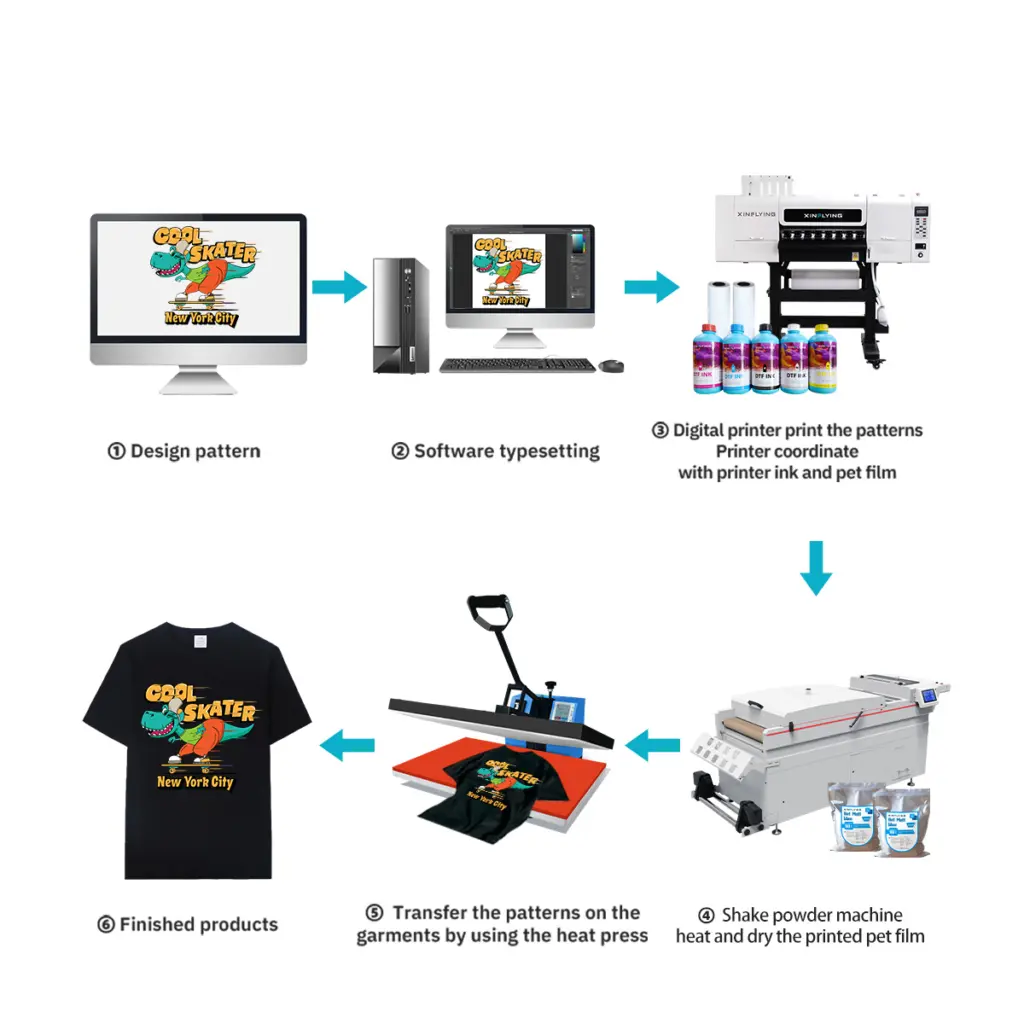
วิธีการอัตโนมัติ (หน่วยเครื่องปั่นแบบบูรณาการ): เครื่องพิมพ์ DTF เชิงพาณิชย์ส่วนใหญ่มีเครื่องพ่นสีฝุ่นอัตโนมัติ — ฟิล์มจะส่งผ่านจากเครื่องพิมพ์โดยตรงไปยังโซนสีฝุ่น, แล้วเข้าเตาอบเพื่อบ่ม.
เคล็ดลับ: ใช้แป้งเนื้อละเอียด (80–120 ตาข่าย) สำหรับการออกแบบที่ละเอียดและผงหยาบสำหรับผ้าหนา.
ขั้นตอน 9: รักษาผง
ผงกาวจะต้องละลายและแข็งตัวเพื่อให้ติดแน่นกับชั้นพิมพ์.
- เตาอบ/เครื่องอบอุโมงค์: 130–160°C เป็นเวลา 2–3 นาที (แนะนำสำหรับการผลิต)
- กดความร้อน: 160°C เป็นเวลา 30–60 วินาที, ไม่มีความกดดัน, เปิดฝาออกเล็กน้อยเพื่อให้ความชื้นระบายออกไป
การถ่ายโอนที่บ่มแล้วควรดูเป็นมันเล็กน้อย และผงควรละลายจนหมด ไม่ควรมองเห็นเม็ดสีขาว.
ขั้นตอน 10: โอนไปยังผ้า
ตอนนี้การโอน DTF ของคุณก็พร้อมที่จะนำไปใช้กับเสื้อผ้าแล้ว.
- เปิดผ้าบนเครื่องรีดร้อนที่อุณหภูมิ 160°C เป็นเวลา 6-10 วินาทีเพื่อขจัดความชื้น
- วางตำแหน่งฟิล์มถ่ายโอนบนเสื้อผ้า (โดยให้ด้านที่พิมพ์อยู่คว่ำลง)
- กดที่ 160–165°C ด้วยแรงดันปานกลางเป็นเวลา 6–10 วินาที
- ลอกฟิล์มขณะร้อน (ฟิล์มลอกร้อน) หรือปล่อยให้เย็น (ฟิล์มลอกเย็น)
- เพื่อความทนทานสูงสุด, ทำ กดครั้งที่สอง สำหรับ 10 วินาทีโดยมีแผ่นซิลิโคนอยู่ด้านบน
การแก้ไขปัญหาการตั้งค่าทั่วไป
| ปัญหา | สาเหตุน่าจะ | สารละลาย |
|---|---|---|
| หัวฉีดหายไปในการทดสอบการพิมพ์ | หัวพิมพ์อุดตันหรือมีอากาศอยู่ในสายหมึก | เรียกใช้รอบการทำความสะอาดหัว 2-3 ครั้ง |
| หมึกขาวพิมพ์ไม่ออก | หมึกสีขาวติดอยู่หรือท่ออุดตัน | เขย่าหมึกขาว, เรียกใช้การล้างหมึกสีขาว |
| ฟิล์มเอียงระหว่างป้อน | การจัดแนวแนวขอบไม่ถูกต้อง | จัดแนวคำแนะนำอีกครั้ง, ลดความเร็วในการพิมพ์ |
| แป้งไม่ติดสม่ำเสมอกัน | หมึกไม่อิ่มตัวหรือติดฟิล์มผิดด้าน | ตรวจสอบการตั้งค่าความหนาแน่นของหมึก; ฟิล์มพลิก |
| โอนลอกหลังจากล้าง | การบ่มหรือแรงกดไม่เพียงพอ | เพิ่มเวลากดหรืออุณหภูมิ |
เคล็ดลับการบำรุงรักษาเพื่อให้เครื่องพิมพ์ DTF ของคุณทำงานได้อย่างราบรื่น
- รายวัน: ดำเนินการตรวจสอบหัวฉีดก่อนการพิมพ์ครั้งแรก; ปิดฝาหัวพิมพ์เมื่อไม่ได้ใช้งาน
- รายสัปดาห์: ทำความสะอาดสถานีปิดฝา, ใบปัดน้ำฝน, และแถบตัวเข้ารหัส
- รายเดือน: ตรวจสอบการเชื่อมต่อท่อหมึกและทำความสะอาดด้านในของโถผสมผง
- หมึกขาว: คนหรือหมุนเวียนทุกวันเพื่อป้องกันการตกตะกอน
คำถามที่พบบ่อย
ถาม: ฉันสามารถใช้หมึกใดๆ ในเครื่องพิมพ์ DTF ของฉันได้หรือไม่? ก: เลขที่. ใช้หมึกสูตรเฉพาะสำหรับการพิมพ์ DTF และเข้ากันได้กับรุ่นหัวพิมพ์ของคุณเสมอ (เช่น, เอปสัน I3200-A1 หรือ XP600). การใช้หมึกที่เข้ากันไม่ได้อาจทำให้หัวพิมพ์เสียหายอย่างถาวรได้.
ถาม: ฉันจำเป็นต้องมีเครื่องปั่นแบบผงและเครื่องอบผ้าแยกต่างหากหรือไม่? ก: เครื่องพิมพ์ระดับเริ่มต้นจำเป็นต้องใช้การพ่นสีฝุ่นด้วยตนเองและการรีดความร้อนแบบสแตนด์อโลนเพื่อการบ่ม. โมเดลเชิงพาณิชย์เช่นรุ่นจาก Xinflying มีการเขย่าและการบ่มผงแบบผสมผสานในเครื่องเดียว, ทำให้ขั้นตอนการทำงานเป็นอัตโนมัติเต็มรูปแบบ.
ถาม: การถ่ายโอน DTF ใช้เวลานานเท่าใด? ก: การถ่ายโอน DTF ที่ใช้อย่างเหมาะสมสามารถทนทานได้ 40+ รอบการซักโดยไม่ซีดจางเมื่อใช้หมึกคุณภาพสูงและพารามิเตอร์การกดที่ถูกต้อง.
ถาม: ผ้าชนิดใดที่ใช้ได้กับการพิมพ์ DTF? ก: DTF ทำงานบนผ้าฝ้าย, โพลีเอสเตอร์, ไนลอน, ผสมผสาน, เดนิม, และผ้ายืดหยุ่น — ไม่จำเป็นต้องผ่านการบำบัดล่วงหน้า, ต่างจากการพิมพ์ด้วยระบบ DTG.
บทสรุป
การตั้งค่าเครื่องพิมพ์ DTF อย่างถูกต้องตั้งแต่เริ่มต้นจะช่วยประหยัดเวลาในการแก้ไขปัญหาต่อเนื่องหลายชั่วโมง. ขั้นตอนสำคัญ — สภาพแวดล้อมที่เหมาะสม, หัวฉีดที่สะอาด, การตั้งค่า RIP ที่ปรับเทียบแล้ว, และพารามิเตอร์การกดที่ถูกต้อง - เป็นสิ่งที่แยกความคมออกจากกัน, การถ่ายโอนที่คงทนจากผลลัพธ์ที่ไม่ดี.
หากคุณกำลังมองหาเครื่องพิมพ์ DTF ที่มาพร้อมกับการรองรับการตั้งค่าเต็มรูปแบบ, ความช่วยเหลือด้านเทคนิคระยะไกล, และการฝึกอบรมผู้ปฏิบัติงานฟรี, สำรวจกลุ่มผลิตภัณฑ์เครื่องพิมพ์ DTF ของ Xinflying — ตั้งแต่เดสก์ท็อป A3 ขนาดกะทัดรัดไปจนถึงเครื่องจักรอุตสาหกรรมขนาด 48 นิ้วปริมาณมาก.