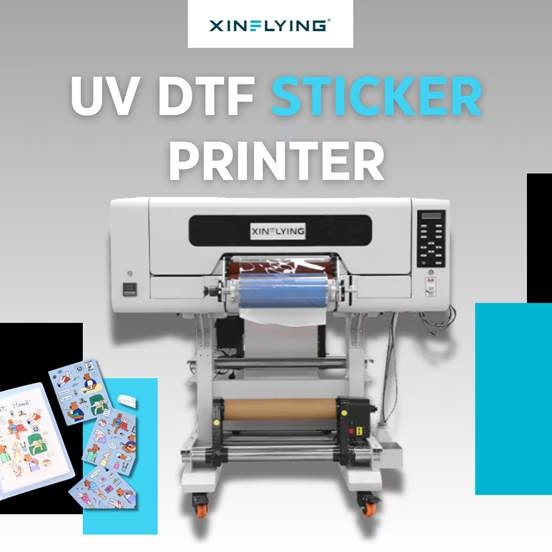
처음으로 DTF 프린터를 설정하는 것은 부담스러울 수 있습니다., 하지만 단계를 알고 나면 프로세스는 간단해집니다.. 홈 스튜디오용 보급형 A3 DTF 프린터를 구입했든, 인쇄소용 상업용 24인치 프린터를 구입했든 상관없습니다., 이 가이드는 개봉부터 첫 전송 인쇄까지 모든 과정을 안내합니다..
시작하기 전에 필요한 것
기기의 전원을 켜기 전에, 다음 사항이 준비되어 있는지 확인하세요:
- DTF 프린터 (전원 케이블 및 USB/이더넷 케이블 포함)
- DTF 안료 잉크 (CMYK + 하얀색)
- DTF PET 필름 (뜨겁고 차가운 껍질 옵션)
- 핫멜트 접착제 분말
- RIP 소프트웨어 (메인탑과 같은, 포토프린트, 또는 플렉시)
- Windows를 실행하는 컴퓨터 10 또는 나중에
- 열 프레스 기계 (전송 단계의 경우)
단계 1: 올바른 위치를 선택하세요
DTF 프린터를 안정된 곳에 두십시오., 모든 면에 충분한 여유 공간이 있는 평평한 표면 - 미디어 공급 및 수집을 위해 왼쪽과 오른쪽에 최소 30cm. 프린터를 직사광선에 닿지 않는 곳에 보관하세요., 먼지, 그리고 습도, 이는 인쇄 품질과 프린트헤드 수명에 영향을 미칠 수 있기 때문입니다..
이상적인 환경:
- 온도: 20-30°C (68-86°F)
- 습기: 40-60% 상대습도
- 통풍: 좋은 공기 흐름을 권장합니다, 특히 분말 경화용
단계 2: 포장 풀기 및 프린터 검사
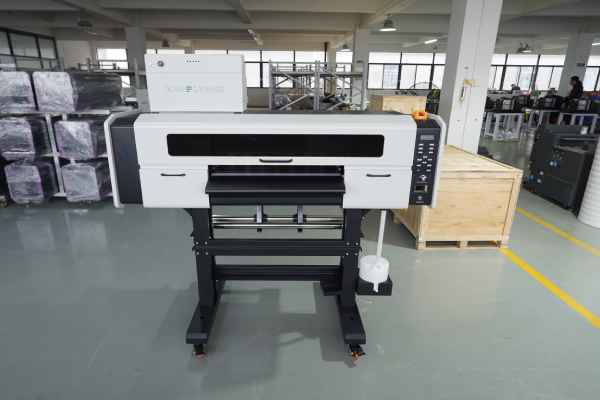
모든 포장재를 조심스럽게 제거하세요., 폼 블록 포함, 보호 테이프, 프린터 내부의 운송용 잠금 장치. 이는 제거하는 것이 중요합니다. 제자리에 두면 전원을 켤 때 프린트 헤드 캐리지가 손상될 수 있습니다..
계속하기 전에 다음 사항을 확인하세요.:
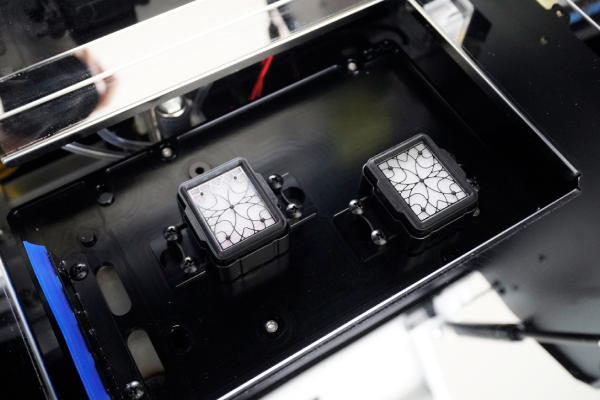
- 프린트헤드가 깨끗하고 손상되지 않았습니다.
- 잉크 튜브가 올바르게 장착되어 있습니다.
- 분말 셰이커 및 건조기 장치 (통합된 경우) 연결되어 있다
- 모든 케이블과 액세서리가 포함되어 있습니다.
단계 3: 프린터 드라이버 설치
- 포함된 USB 드라이브를 삽입하거나 제조업체 웹사이트에서 드라이버를 다운로드하세요.
- 설치 프로그램을 실행하고 화면의 지시를 따릅니다.
- USB 또는 이더넷 케이블을 통해 프린터를 컴퓨터에 연결하십시오.
- 프린터가 나타나는지 확인하세요. 장치 및 프린터 귀하의 Windows 시스템에서
팁: USB 케이블을 연결하기 전에 항상 드라이버를 설치하십시오., 설치자가 달리 지시하지 않는 한.
단계 4: RIP 소프트웨어 설치 및 구성
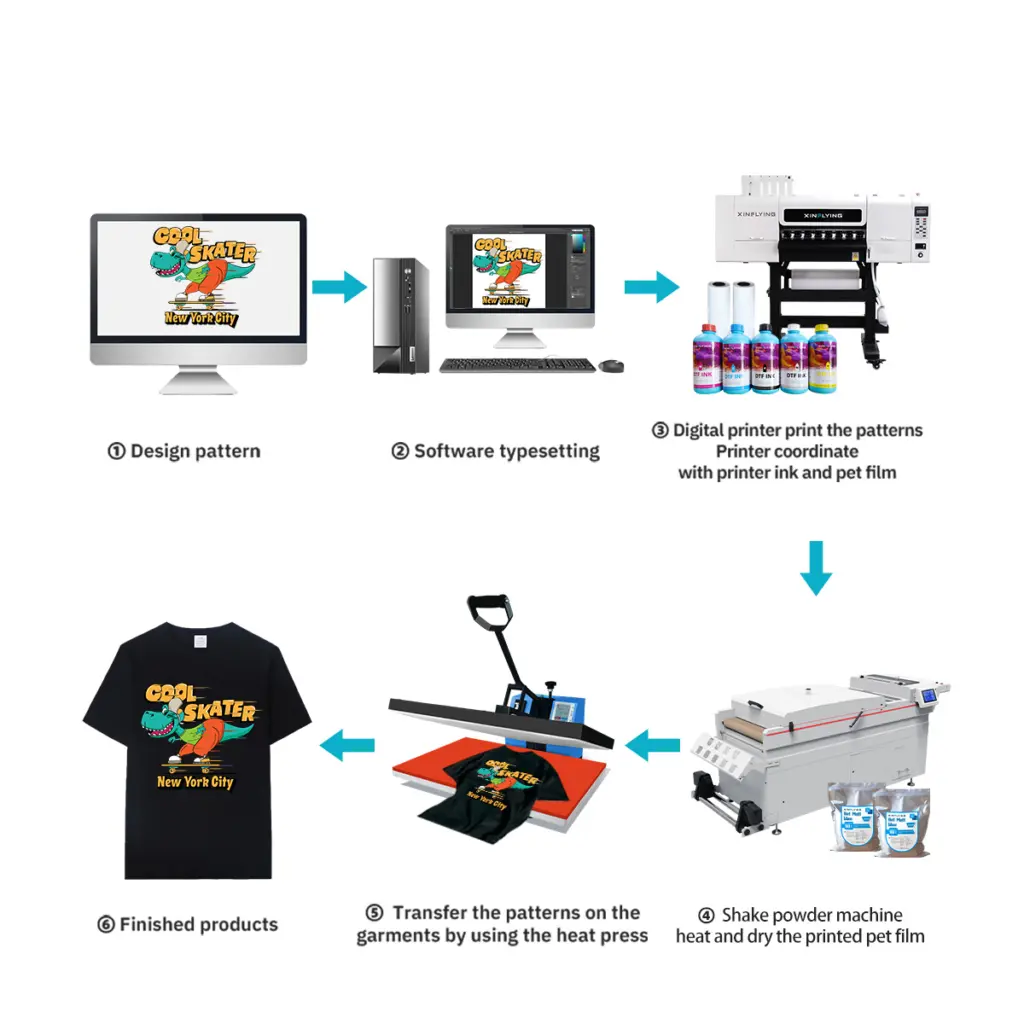
찢다 (래스터 이미지 처리) 소프트웨어는 DTF 인쇄에 필수적입니다. 잉크 밀도를 제어합니다., 흰색 잉크 레이어, 색상 프로필, 및 인쇄 속도. 그것 없이는, 전문적인 결과를 얻을 수 없습니다.
설정 단계:
- RIP 소프트웨어 설치 (메인탑 6.1 일반적으로 Xinflying 프린터와 함께 사용됩니다.)
- 장치 목록에서 프린터 모델을 추가하세요.
- 프린터 제조업체에서 제공한 ICC 색상 프로필을 로드합니다.
- 인쇄 모드 설정:
- 색상 레이어를 먼저, 다음 흰색 (DTF 표준)
- 흰색 잉크 불투명도: 시작하다 100% 테스트 결과에 따라 조정
- 인쇄 해상도 설정: 600표준 품질의 경우 ×1200dpi; 720미세한 디테일을 위한 ×1440dpi
단계 5: 잉크 시스템 채우기
DTF 프린터는 각 색상 채널에 대해 별도의 카트리지 또는 탱크가 있는 대량 잉크 시스템을 사용합니다.: 시안, 마젠타, 노란색, 검은색, 그리고 화이트.
- 흔들어 흰색 잉크 채우기 전에 2~3분 동안 병을 완전히 헹구십시오. 흰색 잉크는 빨리 자리잡으므로 잘 섞어야 합니다.
- 각 탱크를 표시된 수준까지 채우십시오., 과충전 방지
- 프린터의 유지 관리 패널을 사용하여 잉크 시스템을 프라이밍합니다. 이렇게 하면 잉크가 튜브를 통해 프린트 헤드로 끌어옵니다.
- 실행 노즐 점검 모든 채널이 올바르게 작동하는지 확인하려면
중요한: 흰색 잉크는 CMYK보다 더 자주 유지 관리가 필요합니다.. 프린터가 1시간 이상 유휴 상태인 경우 24 시간, 인쇄하기 전에 짧은 청소 주기를 실행하십시오..
단계 6: DTF 필름 로드
DTF 인쇄는 PET 필름에 이루어집니다., 직물이 아닌. 필름은 표준 롤 미디어처럼 프린터에 로드됩니다..
- 프린터 뒷면의 미디어 홀더에 필름 롤을 장착합니다.
- 플래튼을 통해 필름을 공급하고 가장자리 가이드에 맞춰 정렬합니다.
- 보장 인쇄 가능 (코팅) 측면이 위를 향함 — 이것은 일반적으로 더 빛나거나 약간 끈적한 면입니다.
- 프린터 제어판과 RIP 소프트웨어 모두에서 용지 너비를 설정합니다.
- 필름이 기울어지지 않고 원활하게 공급되는지 확인하십시오.
단계 7: 테스트 패턴 인쇄
전체 작업을 실행하기 전에, 항상 노즐 점검 패턴을 인쇄하세요.:
- 프린터 제어판에서, 가다 유지관리 → 노즐 점검
- 작은 필름 조각에 테스트 패턴을 인쇄합니다.
- 결과를 검사합니다. 모든 선은 직선이고 끊어지지 않아야 합니다.
- 노즐이 누락된 경우, 실행하다 헤드 청소 순환하고 점검을 반복하십시오
노즐 점검이 깨끗해지면, 작은 테스트 이미지 인쇄 (10×10cm) 색상 정확도를 확인하기 위해, 흰색 잉크 농도, 및 레이어 정렬.
단계 8: 접착 파우더 도포
인쇄 후, 필름은 경화 전에 접착 파우더를 도포해야 하는 젖은 잉크로 나옵니다..
수동 방법:
- 잉크가 아직 젖어 있는 동안 핫멜트 접착제 파우더를 인쇄된 영역 위에 붓습니다.
- 남은 파우더를 가볍게 털어냅니다. 젖은 잉크에 달라붙는 파우더만 남게 됩니다.
- 필름 뒷면을 두드려서 가루를 제거하세요.
자동화된 방법 (통합 셰이커 유닛): 대부분의 상업용 DTF 프린터에는 자동 파우더 도포기가 포함되어 있습니다. 즉, 필름이 프린터에서 파우더 영역으로 직접 전달됩니다., 그런 다음 경화 오븐에 넣습니다..
팁: 미세한 가루를 사용하세요 (80–120 메시) 상세한 디자인과 두꺼운 직물의 거친 분말용.
단계 9: 가루를 치료하십시오
인쇄층과 제대로 접착되려면 접착제 분말을 녹이고 경화시켜야 합니다..
- 오븐/터널 건조기: 130–160°C에서 2~3분 (생산에 권장)
- 열프레스: 16030~60초 동안 °C, 압박감 없음, 수분이 빠져나갈 수 있도록 뚜껑을 살짝 열어두세요
경화된 전사물은 약간 광택이 나고 분말이 완전히 녹아야 합니다. 흰색 과립이 보이지 않아야 합니다..
단계 10: 패브릭으로 전송
이제 DTF 전송을 의류에 적용할 준비가 되었습니다..
- 160°C의 열프레스에 원단을 6~10초 동안 예열하여 수분을 제거합니다.
- 전사 필름을 의류 위에 위치시킵니다. (인쇄된 면이 아래로 향함)
- 다음을 누르세요 160–165°C, 중간 압력에서 6~10초 동안
- 뜨거울 때 필름을 벗겨주세요 (뜨거운 껍질 필름) 아니면 식혀주세요 (콜드 필 필름)
- 최고의 내구성을 위해, ~을 하다 두 번째 누르기 ~을 위한 10 위에 실리콘 시트를 얹은 초
일반적인 설정 문제 해결
| 문제 | 가능한 원인 | 해결책 |
|---|---|---|
| 테스트 인쇄에서 노즐이 누락됨 | 프린트 헤드가 막혔거나 잉크 라인에 공기가 있음 | 헤드 청소 주기를 2~3회 실행합니다. |
| 흰색 잉크가 인쇄되지 않음 | 흰색 잉크가 침전되거나 튜브가 막혔습니다. | 흰색 잉크를 흔들어, 흰색 잉크 퍼지 실행 |
| 공급 중 필름 기울어짐 | 잘못된 가장자리 가이드 정렬 | 가이드 다시 정렬, 인쇄 속도를 줄이세요 |
| 가루가 고르게 안붙어요 | 잉크가 덜 포화되었거나 필름이 잘못된 면이 있음 | 잉크 농도 설정 확인; 플립 필름 |
| 세탁 후 필링 트랜스퍼 | 불충분한 경화 또는 프레스 압력 | 프레스 시간이나 온도를 높이세요. |
DTF 프린터의 원활한 작동을 유지하기 위한 유지 관리 팁
- 일일: 첫 번째 인쇄 전에 노즐 검사 실행; 사용하지 않을 때는 프린트 헤드에 캡을 씌워 두십시오.
- 주간: 캡핑 스테이션 청소, 와이퍼 블레이드, 인코더 스트립
- 월간 간행물: 잉크 튜브 연결을 확인하고 파우더 셰이커 내부를 청소하세요.
- 흰색 잉크: 침전을 방지하기 위해 매일 저어주거나 순환시킵니다.
자주 묻는 질문
큐: DTF 프린터에 어떤 잉크든 사용할 수 있나요?? 에이: 아니요. 항상 DTF 인쇄용으로 특별히 제조되고 해당 프린트 헤드 모델과 호환되는 잉크를 사용하십시오. (예를 들어, 엡손 I3200-A1 또는 XP600). 호환되지 않는 잉크를 사용하면 프린트 헤드가 영구적으로 손상될 수 있습니다..
큐: 별도의 파우더 셰이커와 건조기가 필요한가요?? 에이: 보급형 프린터에는 수동 파우더 도포와 경화를 위한 독립형 열 프레스가 필요합니다.. Xinflying의 제품과 같은 상용 모델에는 단일 장치에 분말 진탕 및 경화 기능이 통합되어 있습니다., 워크플로우를 완전히 자동화하는 것.
큐: DTF 전송은 얼마나 오래 지속됩니까?? 에이: 적절하게 적용된 DTF 전송은 견딜 수 있습니다. 40+ 고품질 잉크와 올바른 프레싱 매개변수를 사용할 경우 눈에 띄는 퇴색 없이 세탁 사이클을 수행할 수 있습니다..
큐: DTF 인쇄에 적합한 직물? 에이: DTF는 면화를 연구합니다., 폴리에스테르, 나일론, 블렌드, 청, 신축성 있는 원단 - 전처리가 필요하지 않습니다., DTG 인쇄와 달리.
결론
처음부터 DTF 프린터를 올바르게 설정하면 문제 해결에 소요되는 시간이 절약됩니다.. 주요 단계 - 적절한 환경, 깨끗한 노즐, 보정된 RIP 설정, 그리고 올바른 프레싱 매개 변수는 날카로운 별개의 것입니다., 열악한 결과로 인한 내구성 있는 전송.
전체 설정을 지원하는 DTF 프린터를 찾고 있다면, 원격 기술 지원, 무료 운영자 교육, Xinflying의 DTF 프린터 제품군을 살펴보세요 — 컴팩트한 A3 데스크톱 장치부터 대용량 48인치 산업용 기계까지.