Konfiguracja drukarki DTF po raz pierwszy może wydawać się przytłaczająca, ale proces jest prosty, gdy znasz kroki. Niezależnie od tego, czy właśnie kupiłeś podstawową drukarkę A3 DTF do domowego studia, czy komercyjną 24-calową maszynę do swojej drukarni, ten przewodnik przeprowadzi Cię przez wszystko — od rozpakowania po wydrukowanie pierwszego przelewu.
Czego będziesz potrzebować przed rozpoczęciem
Przed włączeniem urządzenia, upewnij się, że masz przygotowane następujące elementy:
- Drukarka DTF (z kablem zasilającym i kablem USB/Ethernet)
- Atrament pigmentowy DTF (CMYK + Biały)
- Folia PET DTF (opcje peelingu na gorąco i na zimno)
- Klej topliwy w proszku
- Oprogramowanie RIP (takie jak Maintop, Fotograwiura, lub Flexi)
- Komputer z systemem Windows 10 lub później
- Heat Maszyna prasowa (dla etapu przenoszenia)
Krok 1: Wybierz właściwą lokalizację
Umieść drukarkę DTF na stajni, płaska powierzchnia z wystarczającą ilością wolnego miejsca ze wszystkich stron — co najmniej 30 cm po lewej i prawej stronie do podawania i zbierania mediów. Trzymaj drukarkę z dala od bezpośredniego światła słonecznego, pył, i wilgotność, ponieważ mogą one mieć wpływ na jakość druku i żywotność głowicy drukującej.
Idealne środowisko:
- Temperatura: 20–30°C (68–86°F)
- Wilgotność: 40–60% wilgotności względnej
- Wentylacja: Zalecany dobry przepływ powietrza, zwłaszcza do utwardzania proszkowego
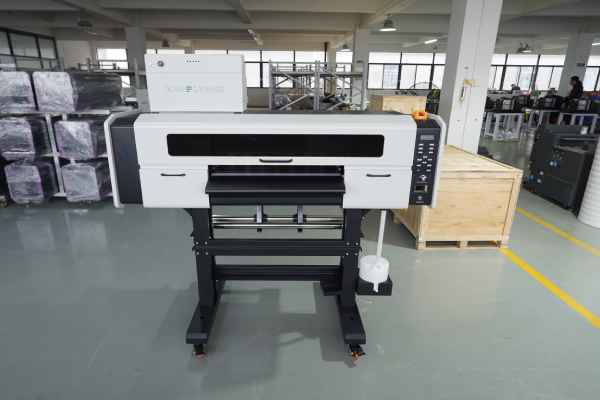
Krok 2: Rozpakuj i sprawdź drukarkę
Ostrożnie usuń wszystkie materiały opakowaniowe, w tym bloki piankowe, taśmy ochronne, i blokady transportowe wewnątrz drukarki. Należy je usunąć — pozostawienie ich na miejscu może spowodować uszkodzenie karetki głowicy drukującej po włączeniu zasilania.
Przed kontynuowaniem sprawdź poniższe kwestie:
- Głowica drukująca jest czysta i nieuszkodzona
- Rurki z atramentem są prawidłowo osadzone
- Wytrząsarka do proszku i suszarka (jeśli jest zintegrowany) są połączone
- Wszystkie kable i akcesoria są dołączone
Krok 3: Zainstaluj sterownik drukarki
- Włóż dołączony dysk USB lub pobierz sterownik ze strony producenta
- Uruchom instalator i postępuj zgodnie z instrukcjami wyświetlanymi na ekranie
- Podłącz drukarkę do komputera za pomocą kabla USB lub Ethernet
- Upewnij się, że drukarka pojawia się w Urządzenia i drukarki w systemie Windows
Wskazówka: Zawsze instaluj sterownik przed podłączeniem kabla USB, chyba że instalator zaleci inaczej.
Krok 4: Zainstaluj i skonfiguruj oprogramowanie RIP
ROZERWAĆ (Przetwarzanie obrazu rastrowego) oprogramowanie jest niezbędne do drukowania DTF — kontroluje gęstość atramentu, warstwy białego atramentu, profile kolorów, i prędkość drukowania. Bez tego, nie możesz osiągnąć profesjonalnych rezultatów.
Kroki konfiguracji:
- Zainstaluj oprogramowanie RIP (ambonka 6.1 jest powszechnie używany w drukarkach Xinflying)
- Dodaj model drukarki z listy urządzeń
- Załaduj profil kolorów ICC dostarczony przez producenta drukarki
- Ustaw tryb drukowania:
- Najpierw warstwa koloru, potem Biały (standard dla DTF)
- Nieprzezroczystość białego atramentu: zacznij o 100% i dostosuj w oparciu o wyniki testów
- Ustaw rozdzielczość druku: 600×1200 dpi dla standardowej jakości; 720× 1440 dpi dla drobnych szczegółów
Krok 5: Napełnij system atramentowy
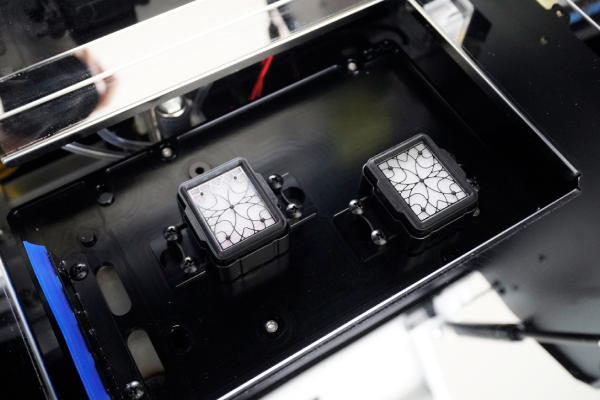
Drukarki DTF korzystają z systemu zbiorczego atramentu z oddzielnymi wkładami lub zbiornikami dla każdego kanału koloru: Cyjan, Magenta, Żółty, Czarny, i Biały.
- Potrząśnij Biały atrament butelkę dokładnie przez 2–3 minuty przed napełnieniem — biały tusz szybko osiada i należy go dobrze wymieszać
- Napełnij każdy zbiornik do wskazanego poziomu, unikanie przepełnienia
- Zalej układ atramentowy za pomocą panelu konserwacyjnego drukarki — powoduje to pobranie atramentu przez rurki do głowicy drukującej
- Uruchom A kontrola dysz aby potwierdzić, że wszystkie kanały działają prawidłowo
Ważny: Atrament biały wymaga częstszej konserwacji niż CMYK. Jeśli drukarka pozostaje bezczynna dłużej niż 24 godziny, przed drukowaniem wykonaj krótki cykl czyszczenia.
Krok 6: Załaduj film DTF
Druk DTF odbywa się na folii PET, nie tkanina. Folia jest ładowana do drukarki jak standardowe media rolkowe.
- Zamontuj rolkę folii na uchwycie nośnika z tyłu drukarki
- Przeprowadź folię przez płytę dociskową i wyrównaj ją z prowadnicami krawędzi
- Zapewnij nadający się do druku (pokryty) strona skierowana do góry — jest to zazwyczaj bardziej błyszcząca lub lekko lepka strona
- Ustaw szerokość nośnika w panelu sterowania drukarki i oprogramowaniu RIP
- Upewnij się, że film jest przesuwany płynnie i bez przekrzywień
Krok 7: Wydrukuj wzór testowy
Przed wykonaniem pełnej pracy, zawsze drukuj wzór testu dysz:
- W panelu sterowania drukarki, idź do Konserwacja → Kontrola dyszy
- Wydrukuj wzór testowy na małym kawałku folii
- Sprawdź wynik — wszystkie linie powinny być proste i nieprzerwane
- Jeśli brakuje jakichkolwiek dysz, uruchomić A Czyszczenie głowicy cykl i powtórz kontrolę
Gdy kontrola dyszy będzie czysta, wydrukuj mały obraz testowy (10×10cm) w celu sprawdzenia dokładności kolorów, gęstość białego atramentu, i wyrównanie warstw.
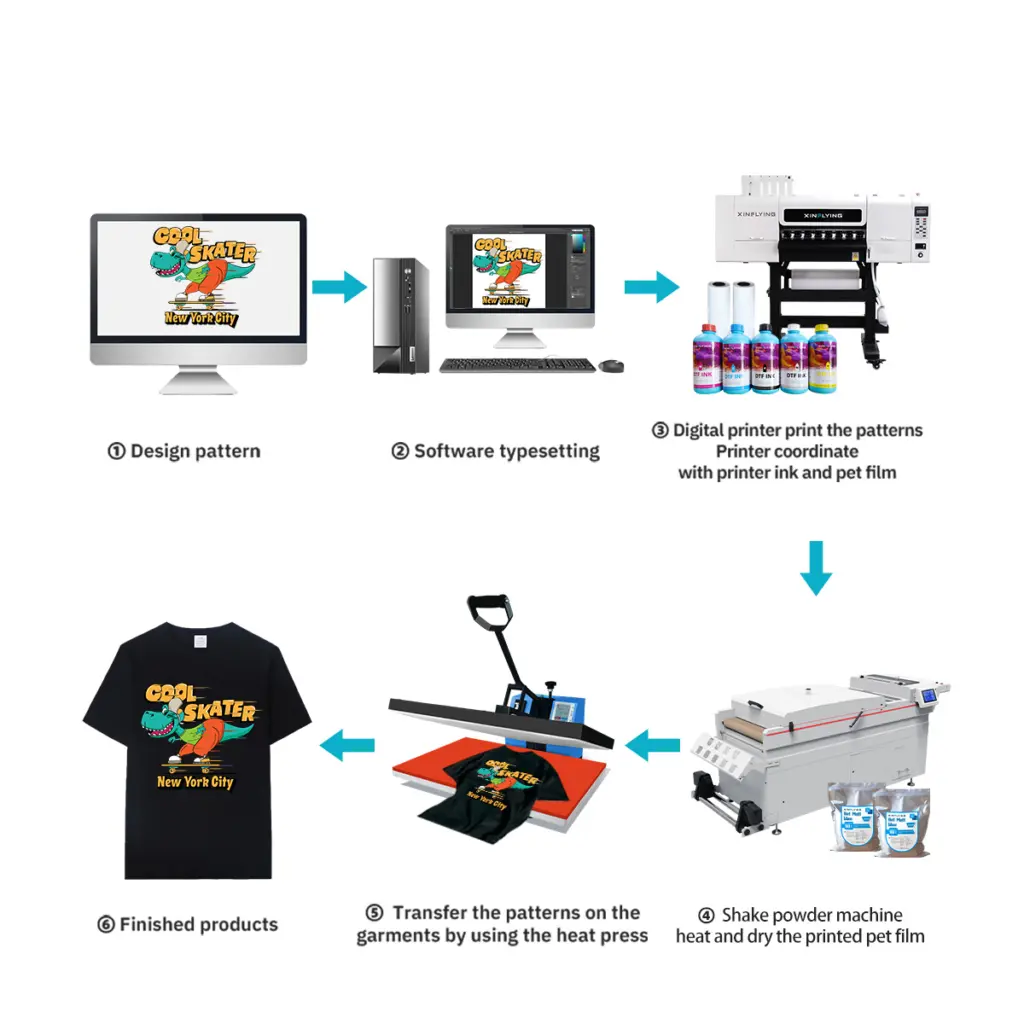
Krok 8: Nałóż proszek klejący
Po wydrukowaniu, z folii wychodzi mokry atrament, który wymaga nałożenia proszku klejącego przed utwardzeniem.
Metoda ręczna:
- Nałóż proszek topliwy na zadrukowany obszar, gdy atrament jest jeszcze wilgotny
- Delikatnie strząśnij nadmiar proszku – powinien pozostać tylko ten, który przylgnął do mokrego tuszu
- Stuknij w tył folii, aby usunąć sypki proszek
Metoda zautomatyzowana (zintegrowana wytrząsarka): Większość komercyjnych drukarek DTF posiada automatyczny aplikator proszku – folia przechodzi bezpośrednio z drukarki do strefy proszku, następnie do pieca do utwardzania.
Wskazówka: Użyj drobnego proszku (80–120 oczek) do szczegółowych projektów i grubszy proszek do grubych tkanin.
Krok 9: Utwardź proszek
Aby klej dobrze związał się z warstwą druku, należy go roztopić i utwardzić.
- Piekarnik/suszarka tunelowa: 130–160°C przez 2–3 minuty (zalecane do produkcji)
- Prasa termiczna: 160°C przez 30–60 sekund, bez ciśnienia, pokrywa lekko otwarta, aby umożliwić ucieczkę wilgoci
Utwardzony transfer powinien wyglądać na lekko błyszczący, a proszek powinien całkowicie się stopić – nie powinny być widoczne żadne białe granulki.
Krok 10: Przenieś do tkaniny
Teraz Twój transfer DTF jest gotowy do naniesienia na odzież.
- Rozgrzej tkaninę na prasie termicznej w temperaturze 160°C przez 6–10 sekund, aby usunąć wilgoć
- Umieść folię transferową na ubraniu (zadrukowaną stroną do dołu)
- Naciśnij o 160–165°C przy średnim ciśnieniu przez 6–10 sekund
- Obierz folię, gdy jest gorąca (folia złuszczająca na gorąco) lub pozostawić do ostygnięcia (folia skórna na zimno)
- Dla najlepszej trwałości, zrobić drugie naciśnięcie Do 10 sekundy z arkuszem silikonu na górze
Rozwiązywanie typowych problemów z konfiguracją
| Problem | Prawdopodobna przyczyna | Rozwiązanie |
|---|---|---|
| Brakujące dysze w wydruku testowym | Zatkana głowica drukująca lub powietrze w przewodzie atramentowym | Uruchom cykl czyszczenia głowicy 2–3 razy |
| Biały atrament nie drukuje | Biały atrament osiadł lub rura jest zablokowana | Wstrząśnij białym atramentem, uruchom usuwanie białego atramentu |
| Przekrzywienie folii podczas podawania | Nieprawidłowe ustawienie prowadnicy krawędzi | Wyrównaj ponownie prowadnice, zmniejszyć prędkość drukowania |
| Puder nie klei się równomiernie | Niedosycony atrament lub zła strona filmu | Sprawdź ustawienia gęstości atramentu; film z klapką |
| Peeling transferowy po praniu | Niewystarczające utwardzenie lub ciśnienie prasy | Zwiększ czas prasowania lub temperaturę |
Wskazówki dotyczące konserwacji zapewniające płynną pracę drukarki DTF
- Codziennie: Przed pierwszym wydrukiem przeprowadź test dysz; zakryj głowicę drukującą, gdy nie jest używana
- Tygodnik: Wyczyść stację zamykającą, pióro wycieraczki, i pasek enkodera
- Miesięczny: Sprawdź połączenia rurek z atramentem i wyczyść wnętrze pojemnika na proszek
- Biały atrament: Codziennie mieszaj lub cyrkuluj, aby zapobiec osadzaniu się
Często zadawane pytania
Q: Czy w mojej drukarce DTF mogę używać dowolnego atramentu?? A: NIE. Zawsze używaj atramentu opracowanego specjalnie do druku DTF i zgodnego z modelem głowicy drukującej (NP., Epson I3200-A1 lub XP600). Użycie niezgodnego atramentu może trwale uszkodzić głowicę drukującą.
Q: Czy potrzebuję osobnej wytrząsarki do proszku i suszarki?? A: Drukarki podstawowe wymagają ręcznego nakładania proszku i samodzielnej prasy termicznej do utwardzania. Modele komercyjne, takie jak te firmy Xinflying, obejmują zintegrowane wytrząsanie proszku i utwardzanie w jednym urządzeniu, dzięki czemu przepływ pracy jest w pełni zautomatyzowany.
Q: Jak długo trwa przelew DTF? A: Prawidłowo zastosowany transfer DTF może wytrzymać 40+ cykli prania bez znacznego blaknięcia przy zastosowaniu wysokiej jakości tuszu i odpowiednich parametrów tłoczenia.
Q: Jakie tkaniny współpracują z drukiem DTF? A: DTF działa na bawełnę, poliester, nylon, mieszanki, dżinsowa, i elastyczne tkaniny – nie wymagają wstępnej obróbki, w przeciwieństwie do druku DTG.
Wniosek
Prawidłowa konfiguracja drukarki DTF od samego początku pozwala zaoszczędzić wiele godzin na rozwiązywaniu problemów. Kluczowe kroki — odpowiednie środowisko, czyste dysze, skalibrowane ustawienia protokołu RIP, i prawidłowe parametry tłoczenia – to jest to, co wyróżnia ostrość, trwałe transfery ze słabych wyników.
Jeśli szukasz drukarki DTF z pełną obsługą konfiguracji, zdalna pomoc techniczna, i bezpłatne szkolenie operatorów, poznaj ofertę drukarek DTF firmy Xinflying — od kompaktowych komputerów stacjonarnych A3 po wielkonakładowe 48-calowe maszyny przemysłowe.